Report Appearance Settings
Report appearance settings control how important labels are displayed across AutoROICalc. They help make records, reports, and dashboards easier to scan by assigning icons, colors, font colors, and icon colors to selected values.
These settings are useful when several teams, clients, record sources, record types, or reporting categories are used in the same account.
Shared property permissions
Owners and admins can change report appearance settings for the selected property. These labels, icons, and colors are shared with its members. See property roles.
Available Appearance Groups
| Group | What it controls |
|---|---|
| Record Sources | Appearance for selected record sources, such as website, API, import, or integration-specific sources. |
| Record Types | Appearance for selected record types used in records and reports. |
| Record Tags | Default and custom appearance for record tags. |
| Report Tags | Default and custom appearance for report tags. |
| Dashboard Tags | Default and custom appearance for dashboard tags. |
The same appearance rules can be reflected in reports and widgets, which makes sources, tags, and paths easier to recognize visually.
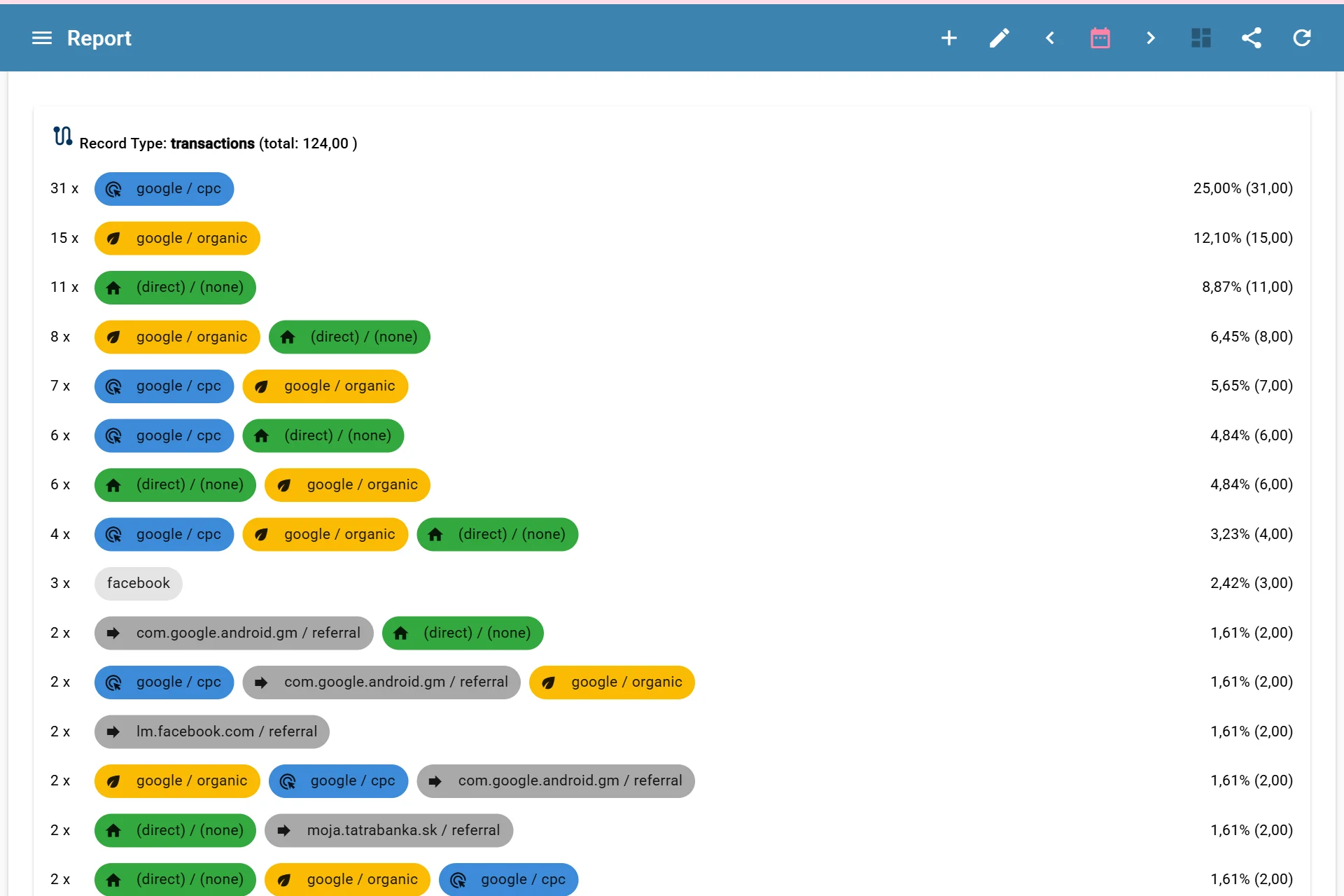
Applied report settings in a Conversion Paths widget
Custom Appearance Options
Each custom appearance entry can define the visual style for a selected source, type, or tag.
Common options include:
- Icon
- Background color
- Font color
- Icon color
The app shows a preview chip while configuring the appearance, so you can check how the item will look before saving.
Use colors consistently
Use the same color logic across records, reports, and dashboards. For example, one color family can represent paid advertising, another organic traffic, and another ecommerce activity.
Exporting Report Settings
Report appearance settings can be exported from the Report Settings tab as an ARC file. This is useful when you want to reuse the same appearance setup in another AutoROICalc account or environment.
The exported package can include:
- Record source appearances
- Record tag default appearance
- Record tag appearances
- Record type appearances
- Report tag default appearance
- Report tag appearances
- Dashboard tag default appearance
- Dashboard tag appearances