Create a Report
Create a report when you want AutoROICalc to calculate, compare, and visualize selected records. The report builder guides you through period settings, time grouping, report items, data enrichment, automation, and layout options.
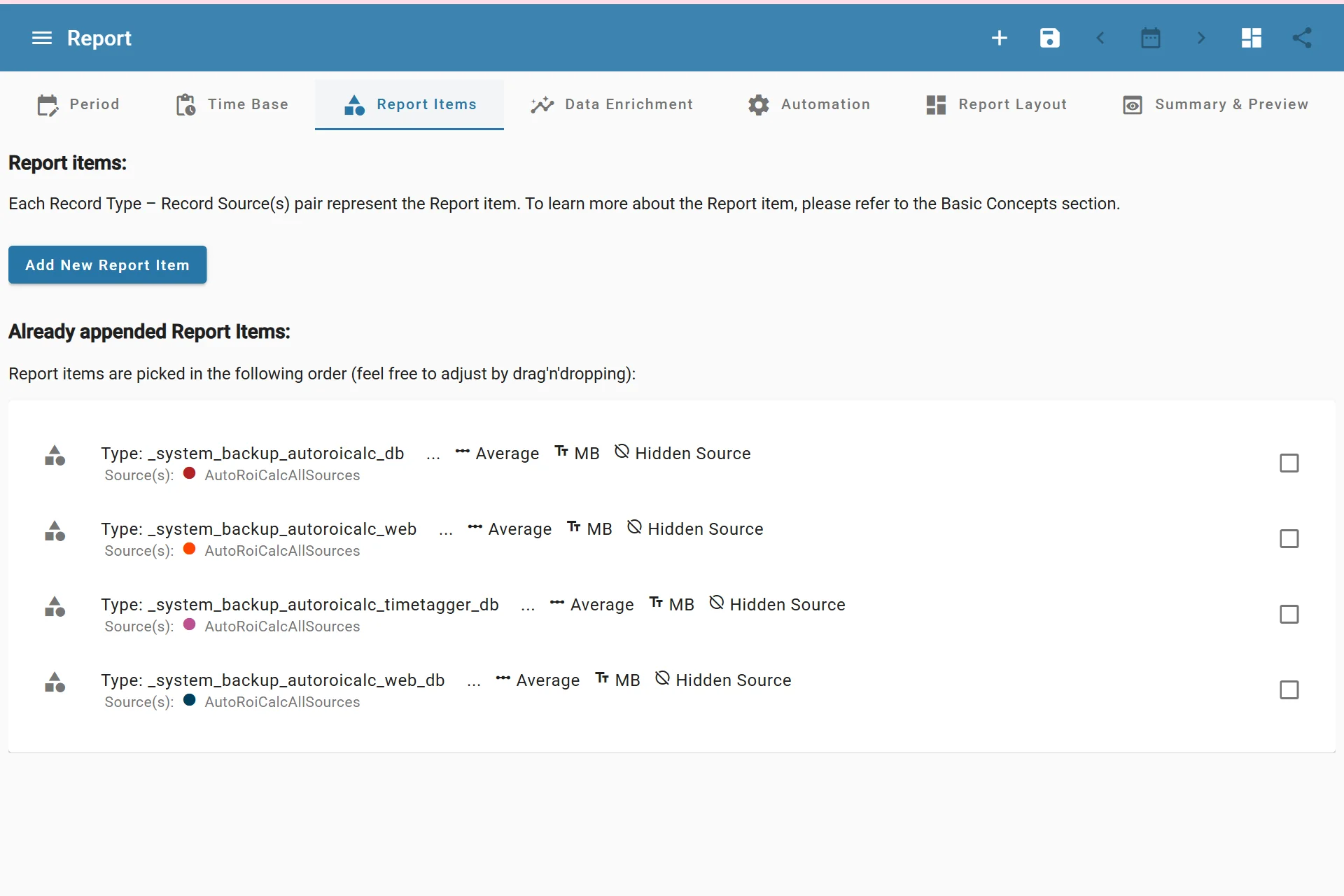
AutoROICalc Report Builder
Before You Start
A useful report needs records with consistent fields:
- Record type
- Source
- Date and time
- Value
- Optional tags or custom data
If you are still testing, import the sample records from the Quick Start guide or create a few records manually.
Basic Steps
To create a report:
- Choose the reporting period.
- Choose the time base.
- Add one or more report items.
- Preview the report data.
- Add data enrichment if needed.
- Configure automation if needed.
- Use the default layout or enter the advanced report designer.
- Save the report.
Report Builder Sections
-
Period and Time Base
Choose the reporting period and decide whether results should be grouped by year, month, week, day, or hour.
-
Report Items
Select record types and sources. Each report item becomes one data series or value in the report.
-
Data Enrichment
Calculate extra metrics such as ROI, totals, ratios, cost per conversion, percentage change, or custom formulas.
-
Automation
Configure notifications or report updates based on report values and date rules.
-
Layout and Widgets
Use the default layout or build an advanced report layout with widgets, charts, tables, values, maps, and breakdowns.
Report Name, Description, and Tags
The summary step lets you set the report name, optional description, and report tags. Use a clear report name that describes the business question, campaign, client, or process the report answers.
Good report names include:
- Monthly Marketing ROI
- Google Ads Lead Performance
- Ecommerce Sales and Costs
- Client Campaign Overview
Report tags help organize reports when the account contains many reporting views.
Preview Before Saving
Use the report preview to confirm that record types, sources, time grouping, values, and enrichment results look correct. If the preview is empty or unexpected, check the selected period, time base, report items, and record sources.