Managing Dashboards
The dashboards list helps you find, open, edit, clone, and delete saved AutoROICalc dashboards. It is the main place to manage dashboard views after they are created.
Shared property permissions
Editors, admins, and owners can create and edit dashboards. Deletion and email scheduling require an admin or owner. Readers can view dashboards. See property roles.
Accessing Dashboards
To access saved dashboards, open the app menu and use the Dashboards section. The dashboards list shows saved dashboard configurations and provides the main actions for viewing, editing, cloning, and deleting dashboards.
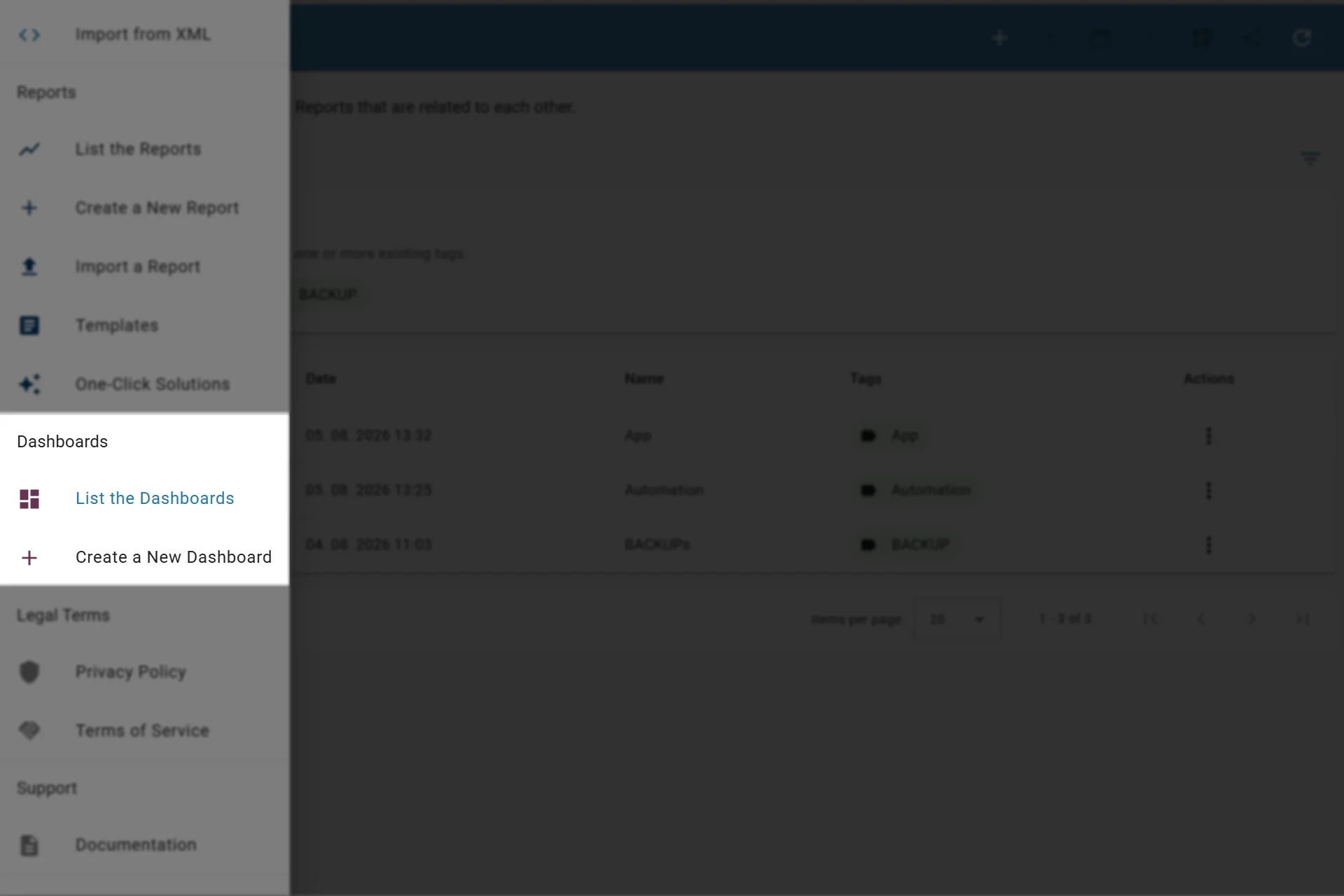
Accessing the dashboard features in-app
Dashboard List
The dashboard list shows the main dashboard details:
| Column | Description |
|---|---|
| ID | Internal dashboard identifier |
| Created | Date when the dashboard was created |
| Name | Dashboard name |
| Tags | Dashboard tags used for filtering and organization |
| Actions | Available dashboard actions |
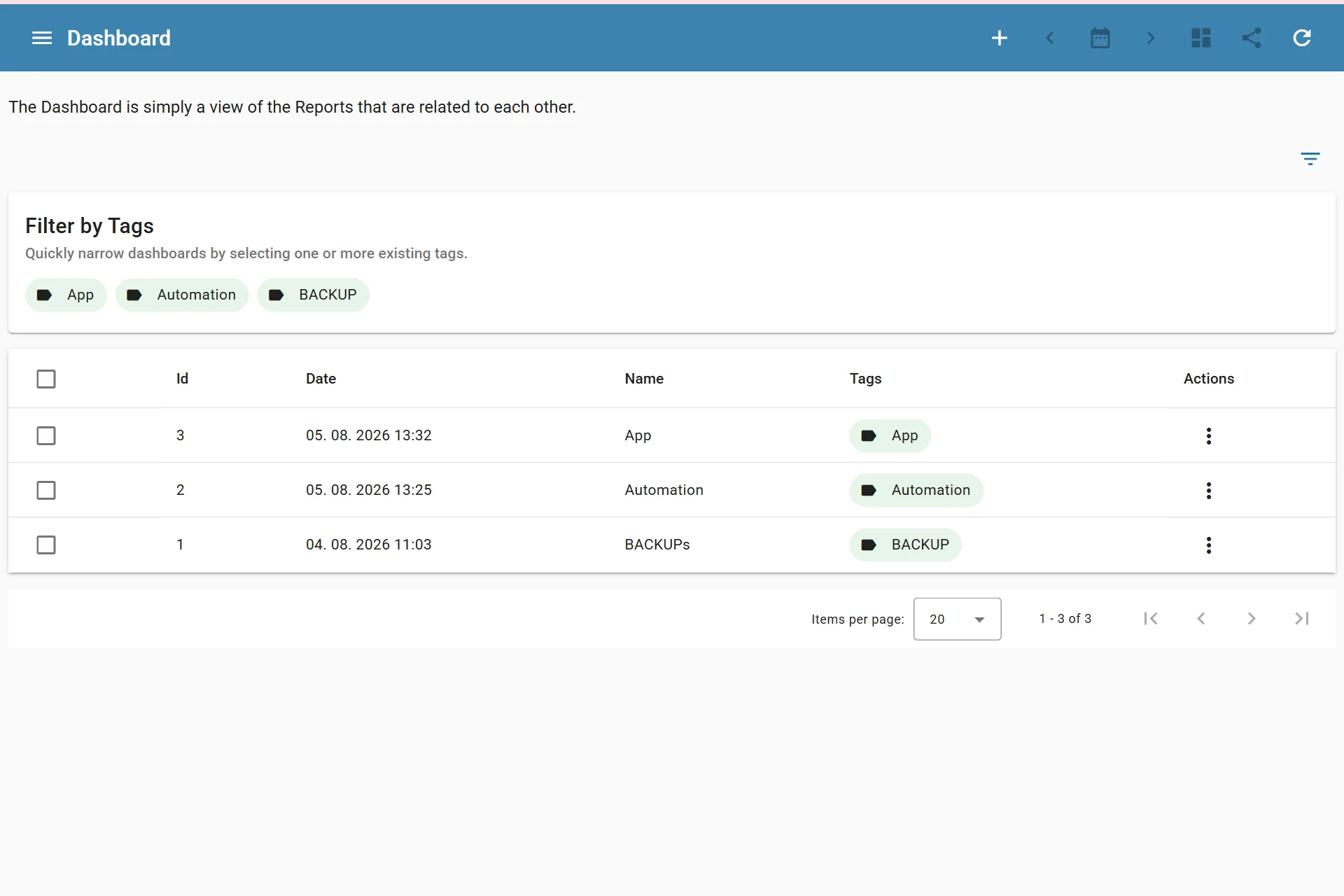
Listing Dashboards
Filtering Dashboards
You can filter dashboards by name and by dashboard tags. Tags are useful when dashboards are grouped by client, team, campaign, channel, market, or reporting purpose.
Examples of useful dashboard tags:
clientweeklypaid-adsecommercemanagement
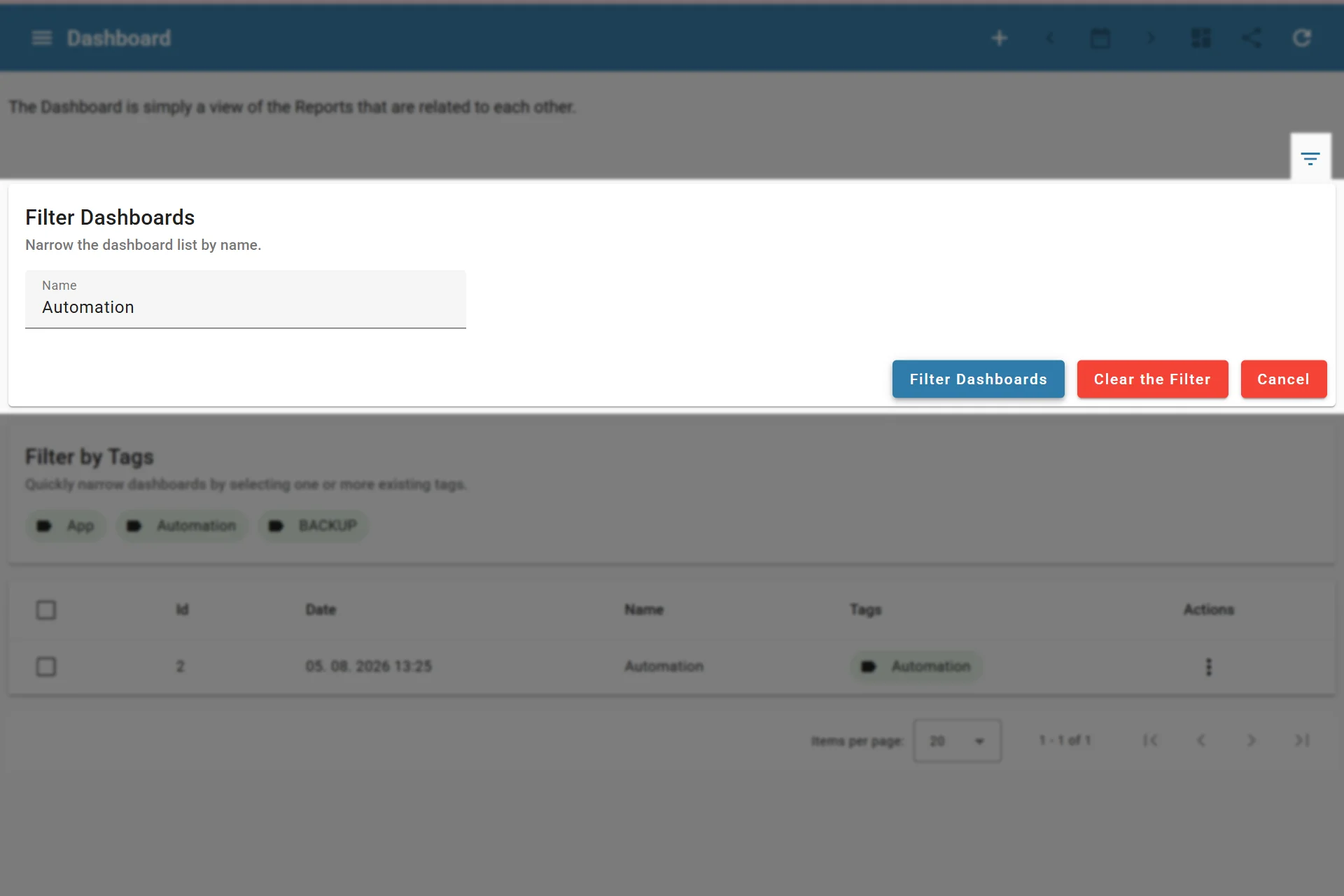
Filtering Dashboards
Available Actions
Depending on your permissions, dashboard actions can include:
- View the dashboard
- Edit the dashboard configuration
- Clone the dashboard
- Delete the dashboard
- Delete selected dashboards in bulk
Cloning is useful when you need a dashboard with the same reports and settings, but want to adjust the name, tags, report order, or email reporting settings.
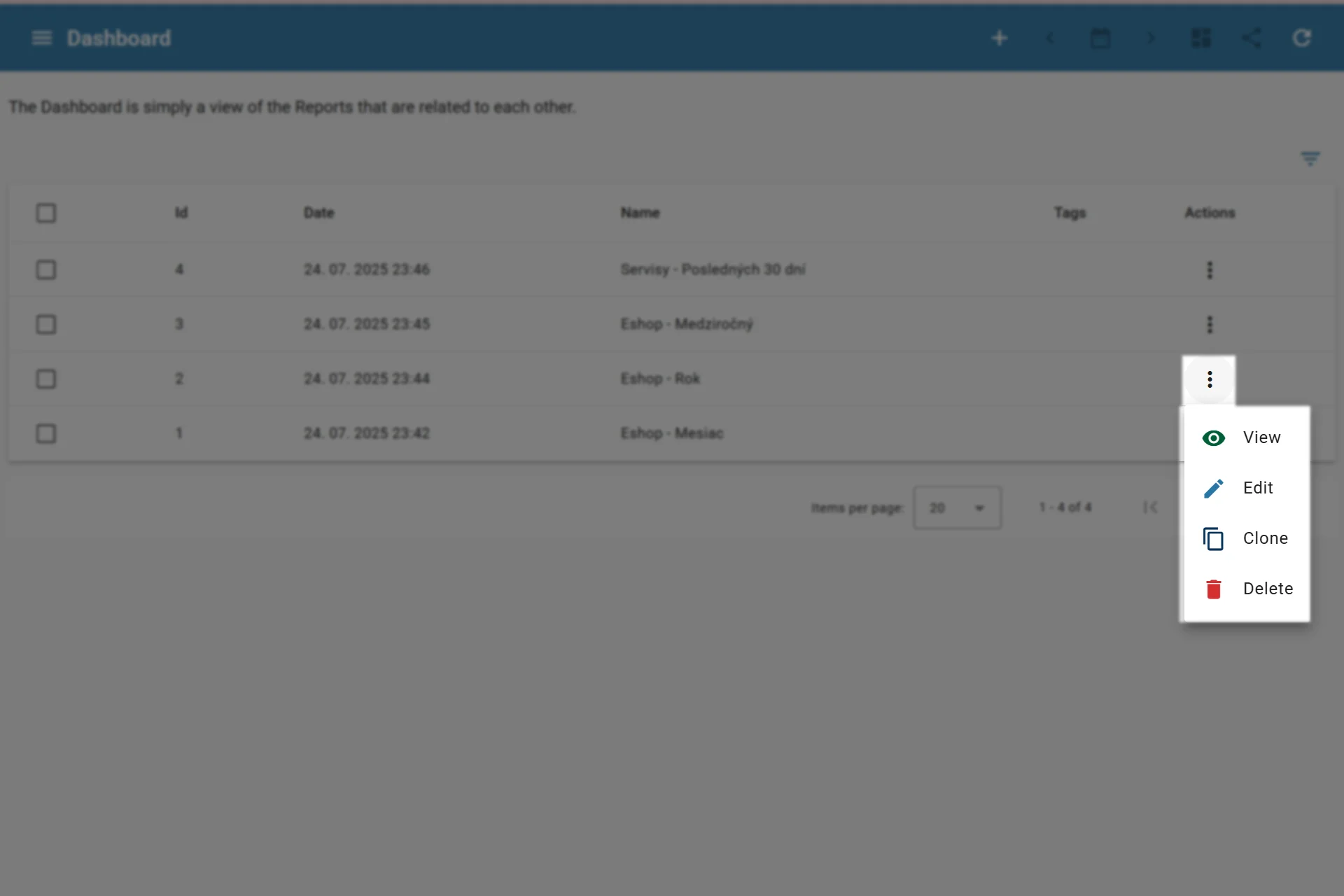
Dashboard Actions
Deleting Dashboards
Deleting a dashboard removes the saved dashboard view. It does not delete the reports or records used by that dashboard.
Check shared reporting workflows first
Before deleting a dashboard, make sure it is not used for a recurring report, client view, or internal reporting process.