Image Widget
The Image widget adds supporting visual content to a report. Use it for logos, screenshots, campaign creatives, product images, or other visuals that help explain the report.
Inputs and Controls
| Control | Description |
|---|---|
| Image file | Upload a PNG, JPEG, or JPG image. |
| Image title | Optional title associated with the image. |
| Image alignment | Left, center, or right alignment. |
| Image fit | Choose contain, cover, fill, scale down, or none. |
| Image position | Set the focal position when the image is fitted or cropped. |
| Image height | Use the natural height or fill the widget height. |
| Preview | Review the image before saving the widget. |
Tips and good uses
Tips
- Use images that add context, not decoration only.
- Keep screenshots readable at the widget size.
- Use consistent image proportions across client reports.
Good uses
- Client or brand logos
- Campaign creative previews
- Landing page screenshots
- Supporting product or offer images
Configuration and Usage
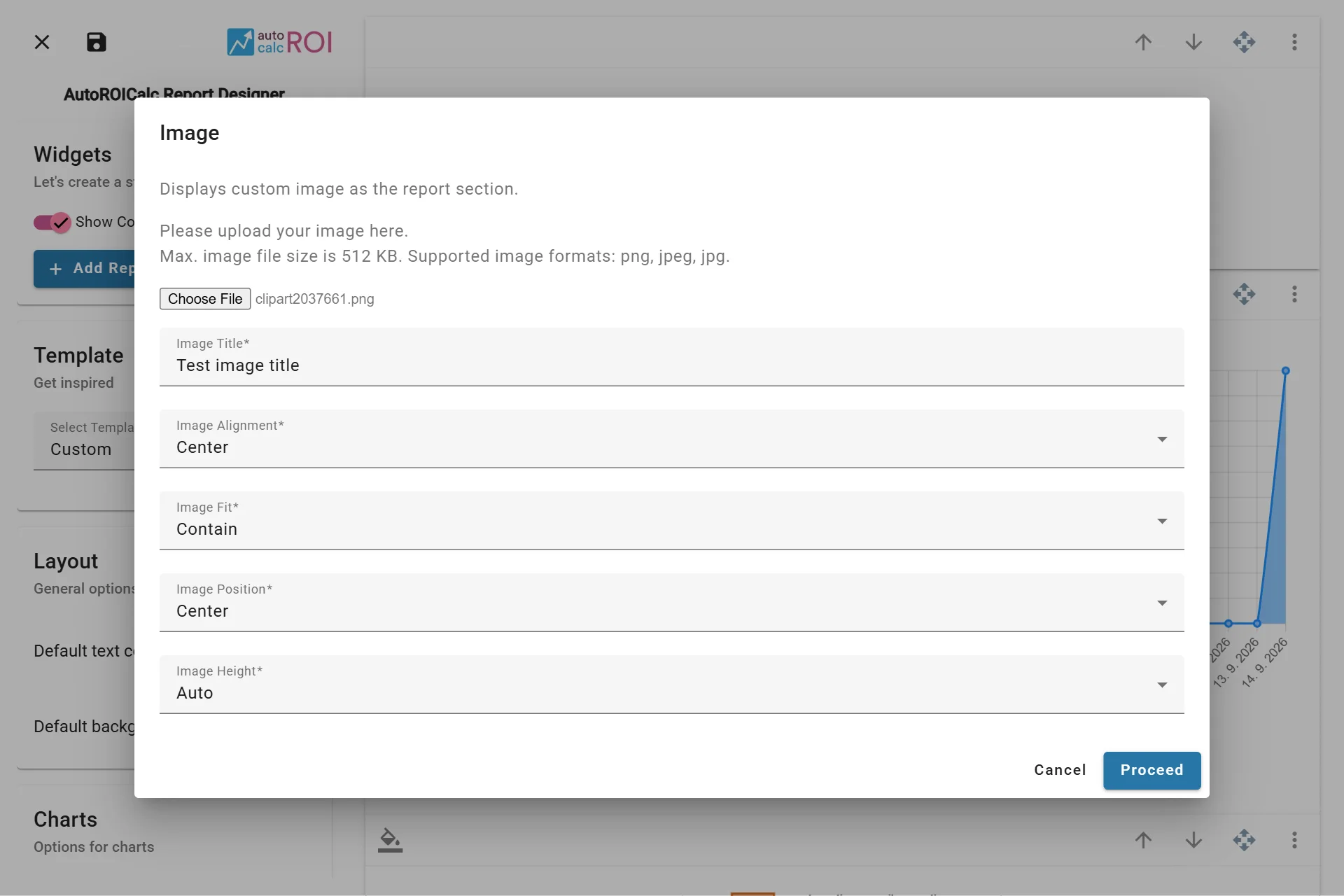
Configuring the Image Widget
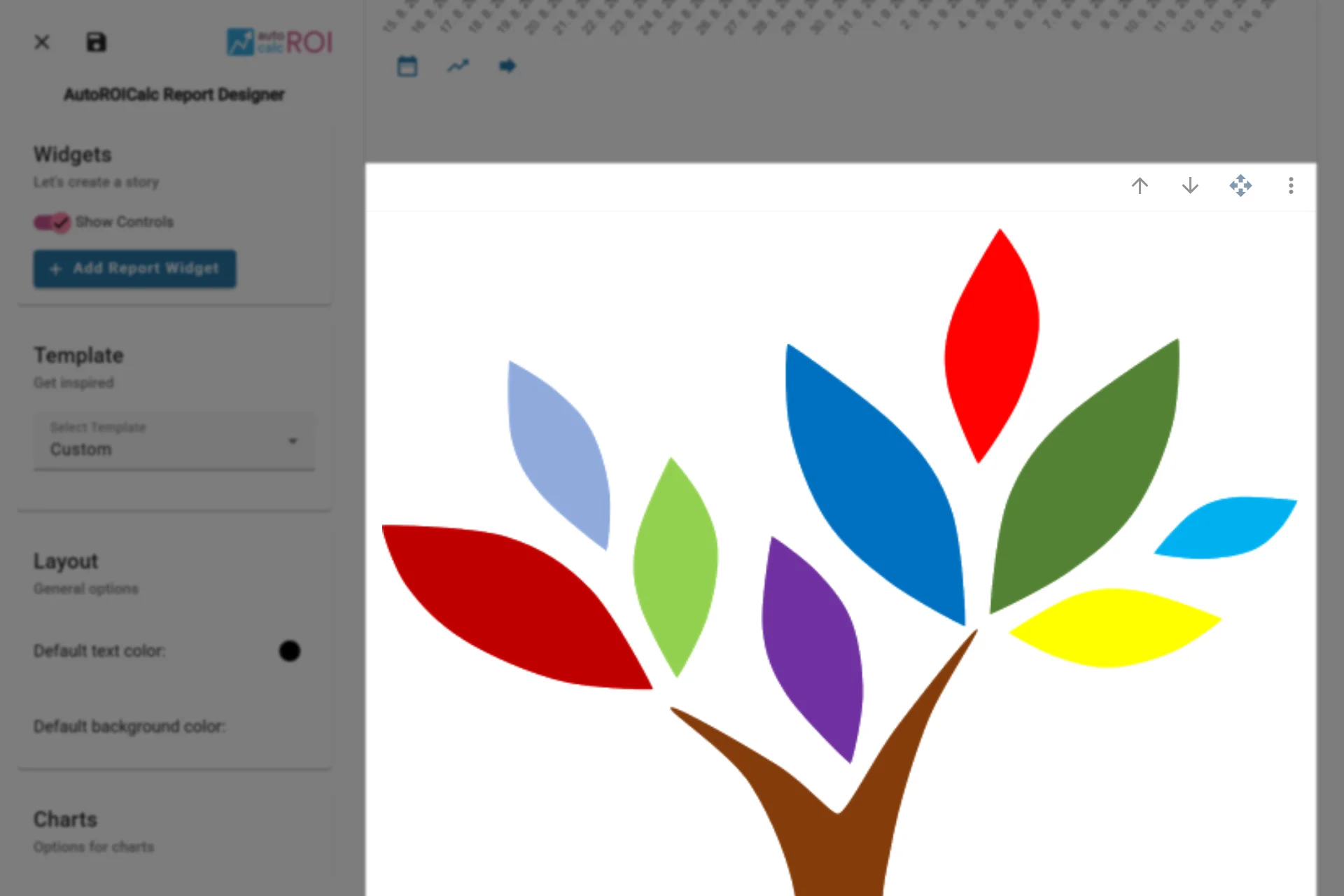
A sample usage of the Image Widget