Create a Dashboard
Create a dashboard when you want to display several AutoROICalc reports together. A dashboard can be used as an internal monitoring page, a client reporting view, or a recurring business overview.
Before You Start
Make sure you already have at least one saved report. The dashboard builder uses existing reports, so the selected reports should already have the correct period, report items, enrichment, and layout.
Dashboard Creation Flow
The dashboard builder follows three main tabs:
| Tab | Purpose |
|---|---|
| Pick Reports | Select the saved reports that should appear on the dashboard and arrange their order. |
| Schedule e-mail reporting | Optionally configure recurring dashboard delivery by email. |
| Summary & Dashboard Name | Add dashboard details, review the configuration, fix validation errors, and save or update the dashboard. |
Pick Reports
Use the Pick Reports tab to choose which saved reports should appear on the dashboard.
The report picker supports:
- Filtering reports by title
- Filtering reports by report tags
- Clearing active filters
- Selecting one or more saved reports
- Seeing report names, creation dates, and tags
- Identifying reports shared with you
- Dragging selected reports into the order they should appear
Pick reports that belong together and answer related questions. For example, a marketing dashboard could include advertising costs, conversions, revenue, ROI, and channel performance reports.
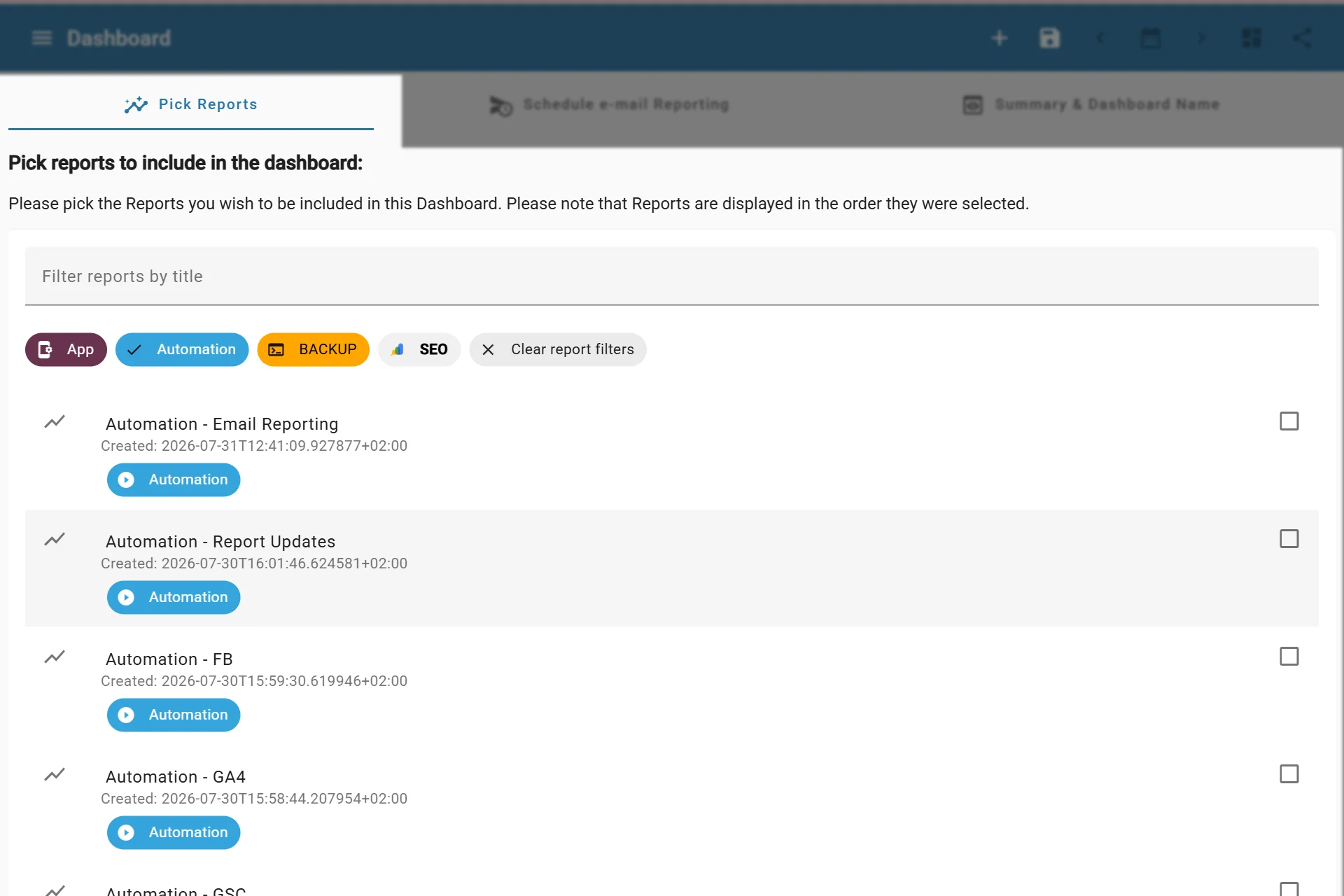
Picking Reports to a Dashboard
Order matters
Put the most important reports first. A dashboard is easier to scan when the first reports answer the main business question and supporting reports appear below them.
Schedule E-Mail Reporting
Use the Schedule e-mail reporting tab when the dashboard should be sent automatically on a recurring schedule.
Email reporting is optional. When enabled, the dashboard can store delivery settings such as:
- Additional e-mail recipients in CC
- Reporting frequency
- Time of day
- Weekday for weekly schedules
- Month day for monthly schedules
The required fields depend on the selected frequency. For example, weekly schedules need a weekday, while monthly schedules need a month day.
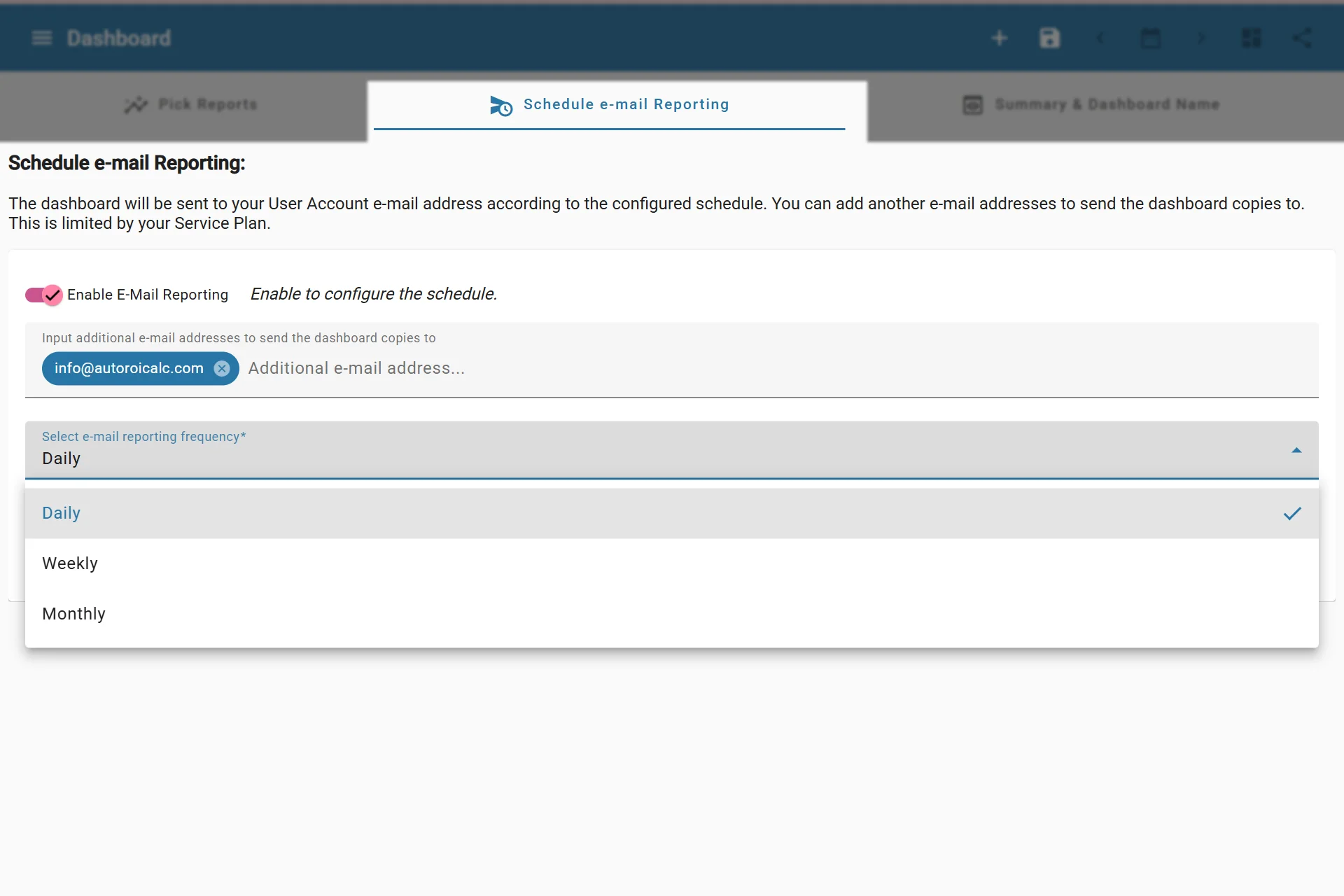
Configuring email reporting
Summary & Dashboard Name
Use the Summary & Dashboard Name tab to name the dashboard, add supporting context, assign tags, and review the configuration before saving.
Use a dashboard name that describes the business purpose of the view. Good names include:
- Marketing ROI Dashboard
- Ecommerce Performance Overview
- Client Monthly Report
- Google Ads and Lead Tracking
The description can explain the audience, reporting goal, or included channels. Tags help organize dashboards when the account contains many reporting views.
The summary section helps you verify:
- Number of selected reports
- Report order
- Whether e-mail reporting is enabled
- E-mail reporting recipients and schedule
- Configuration errors that need to be fixed before saving
Validation
A dashboard needs:
- A dashboard name
- At least one selected report
If email reporting is enabled, the email reporting schedule also needs the required frequency and time settings.