Managing Reports
Use report management when you need to open saved reports, find reports by name or tags, adjust an existing report, clone a useful setup, or remove reports that are no longer needed.
Shared property permissions
Editors, admins, and owners can create, edit, clone, and import reports. Deletion requires an admin or owner; readers can view and export reports. Sharing and automation require an admin or owner. See property roles.
When to Manage Reports
Report management is useful when:
- You want to view an existing report
- You need to edit a report configuration
- You want to reuse an existing report as a starting point
- You need to organize reports with tags
- You want to remove old or test reports
- You are preparing reports for dashboards or recurring reporting
Accessing Reports
To access saved reports, open the app menu and use the Reports section. The reports list shows saved report configurations and provides the main actions for viewing, editing, cloning, sharing, and deleting reports.
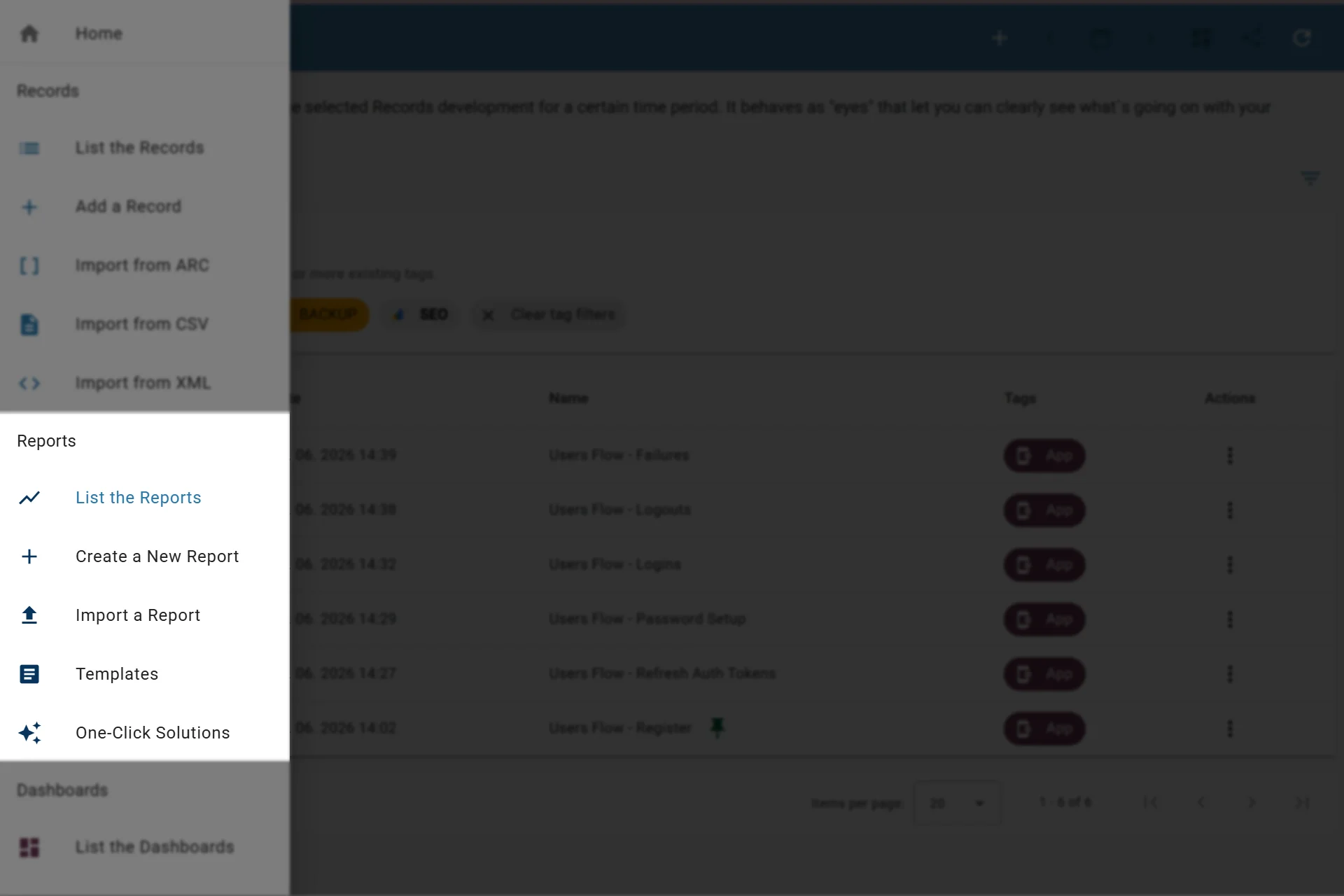
Accessing the report features in-app
List Reports
The report list helps you inspect and organize saved reports.
| Column | Description |
|---|---|
| ID | Internal report identifier |
| Created | Date when the report was created |
| Name | Report name |
| Tags | Report tags used for filtering and organization |
| Actions | Available report actions |
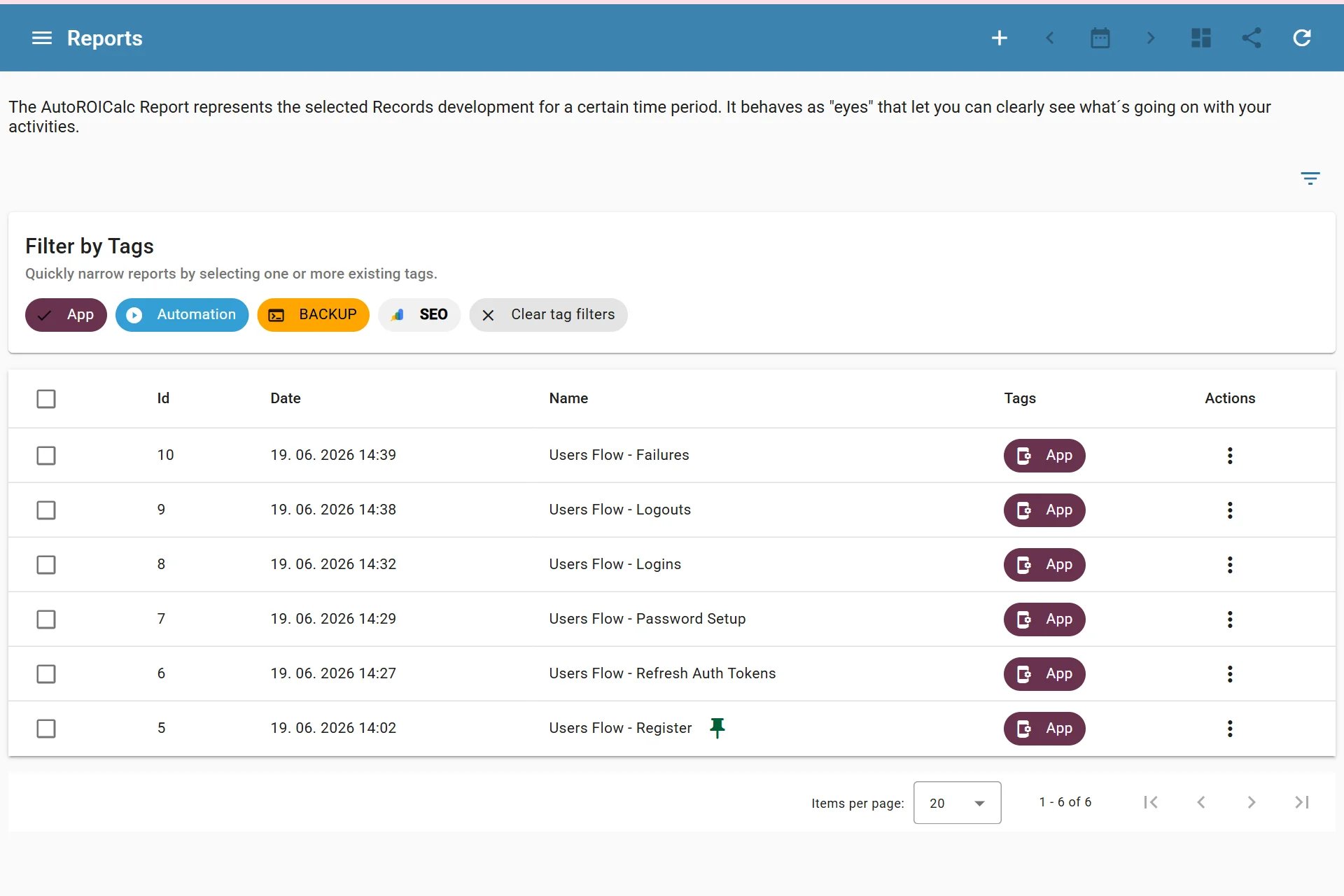
Listing Reports
Filtering Reports
Filtering helps you find the right report before opening, editing, cloning, sharing, or deleting it.
Common filters include:
- Report name
- Report tags
- Report item fields
- Dashboard usage
Use tags for clients, channels, campaigns, markets, or reporting frequency. For example:
clientweeklygoogle-adsseoecommerce
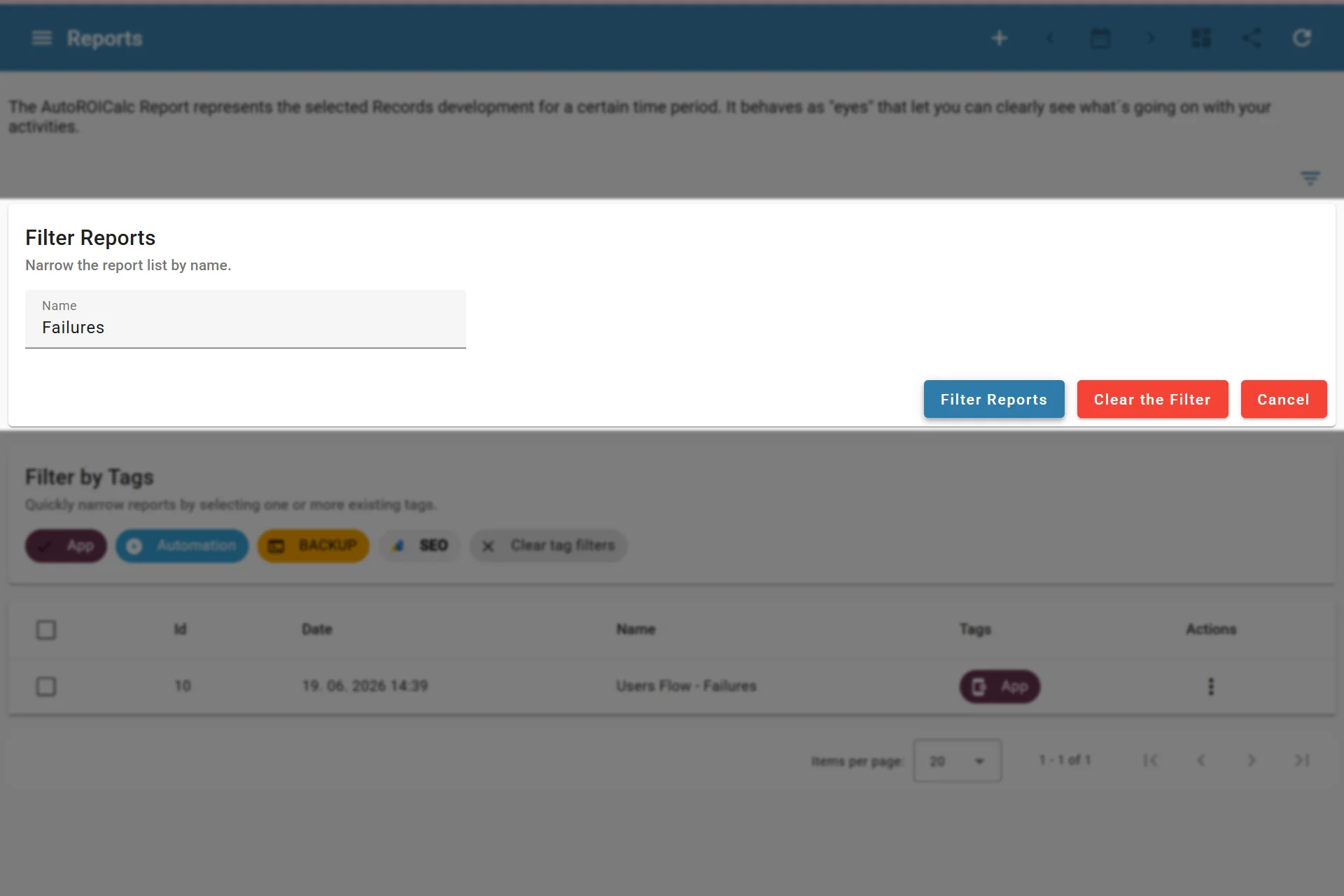
Filtering Reports
Report Actions
You can use report actions for each report:
- View
- Edit
- Clone
- Pin to home
- Export
- Export as bundle
- Save as template
- Delete
Depending on permissions and sharing settings, additional actions can be available, such as managing shared links or accessing email preview tools.
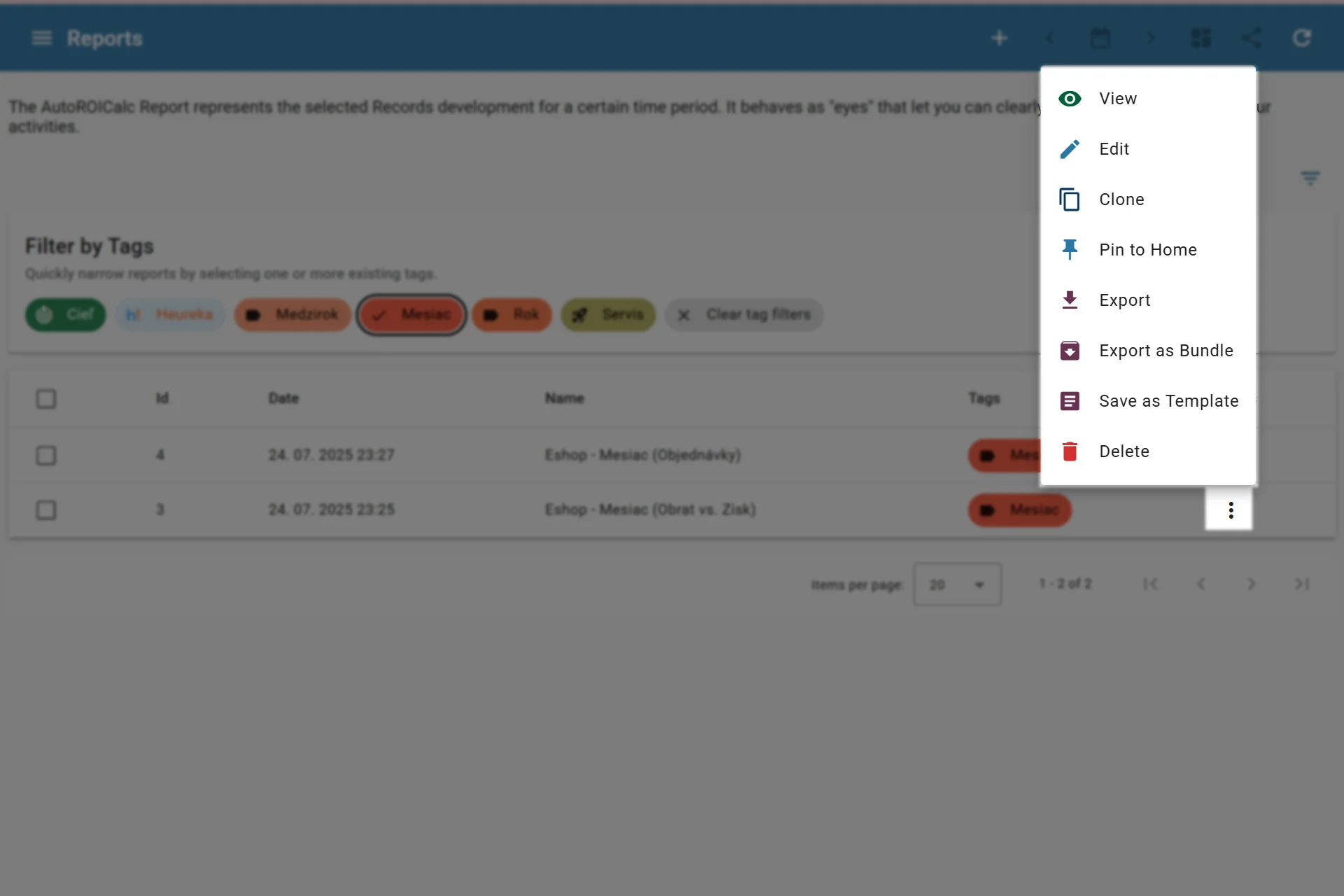
Report actions
View a Report
View a report when you want to inspect the current report output without changing the report configuration. This is useful before adding a report to a dashboard or sharing results with another person.
Edit a Report
Edit a report when the reporting question, selected records, date period, layout, or enrichment needs to change.
Common edits include:
- Changing the report period or time base
- Adding, removing, or updating report items
- Updating data enrichment calculations
- Adjusting automation rules
- Updating the report layout or widgets
- Changing the report name, description, or tags
Dashboards can use saved reports
When you edit a report, dashboards that include that report can show updated results or layout changes. Review related dashboards after larger report edits.
Clone a Report
Clone a report when you want to reuse an existing report configuration and adjust it for another client, campaign, source, or reporting period.
Cloning is useful for:
- Creating a similar report for another client
- Testing changes without modifying the original report
- Reusing a proven report structure
- Preparing several channel-specific report variants
Delete a Report
Delete reports that were created for testing, are outdated, or should no longer be used.
Deletion removes the saved report
Deleting a report removes the saved report configuration. It does not delete the records used by that report, but dashboards or workflows that relied on the report may need to be updated.
Bulk Actions
Bulk actions help when several reports should be removed at once. Select the target reports and use the delete selected reports action carefully.
Bulk actions include:
- Bulk delete
- Bulk update
Tips for Consistent Reports
- Use clear report names that describe the business question
- Use tags for clients, channels, campaigns, or reporting cadence
- Clone reports when experimenting with major changes
- Review dashboards after editing reports used there
- Delete old test reports before the report list becomes noisy