Managing Records Manually
Use manual record management when you need to add a few records, correct existing data, remove mistakes, or quickly test how records affect reports and dashboards.
Shared property permissions
Adding, editing, and deleting records requires the owner or admin role. Readers and editors can view and filter records, but mutation controls are disabled. See property roles.
When to Manage Records Manually
Best for small changes
Manual management is useful for quick edits and learning. For larger batches, use file imports, integrations, or the Records API.
Manual records are useful when:
- You are testing AutoROICalc for the first time
- You need to add a small number of records
- You want to correct a record after import
- You need to remove records that were added by mistake
- You are building a report and want to test how values are calculated
Accessing the Record Features
To access the record features, open the app menu and use the "Records" section.
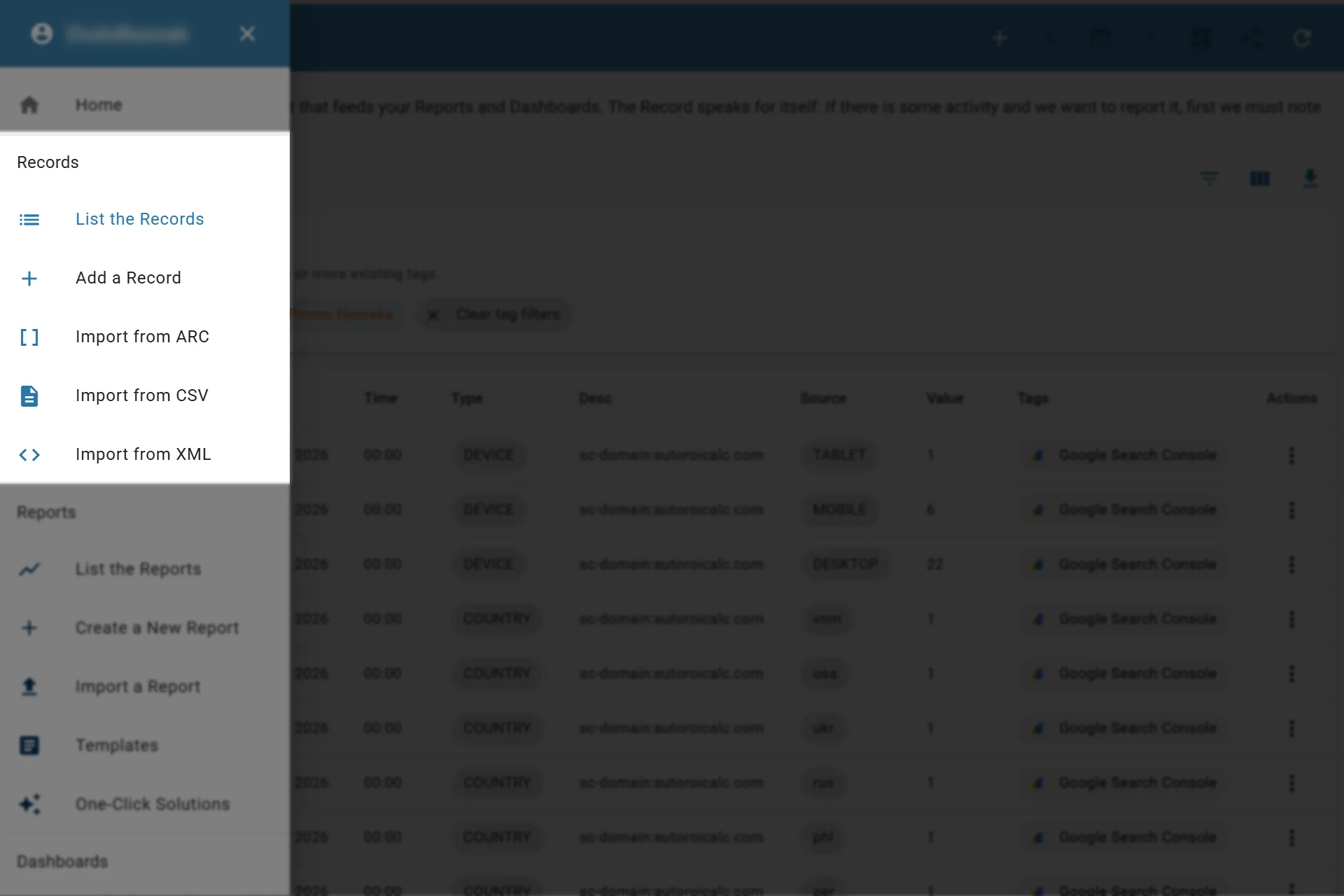
Accessing the record features in-app
List Records
Listing Records lets you inspect collected data. This is useful when checking data quality or fine-tuning integrations.
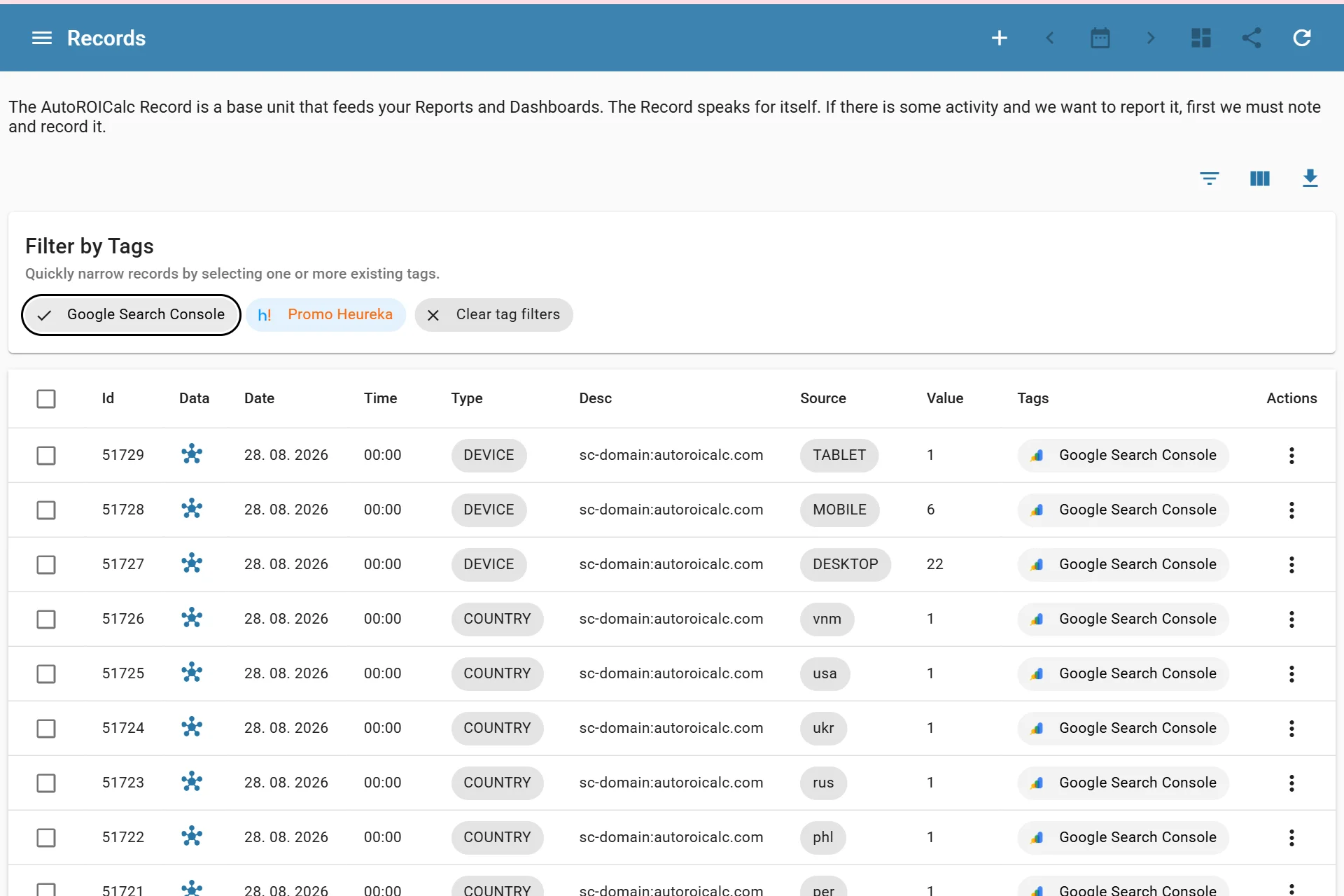
Listing records
Filter
Filtering helps you find the right records before editing, deleting, exporting, or building reports.
Common filters include:
- Date range
- Record type
- Source
- Tags
- Description
- Value range
- Custom data
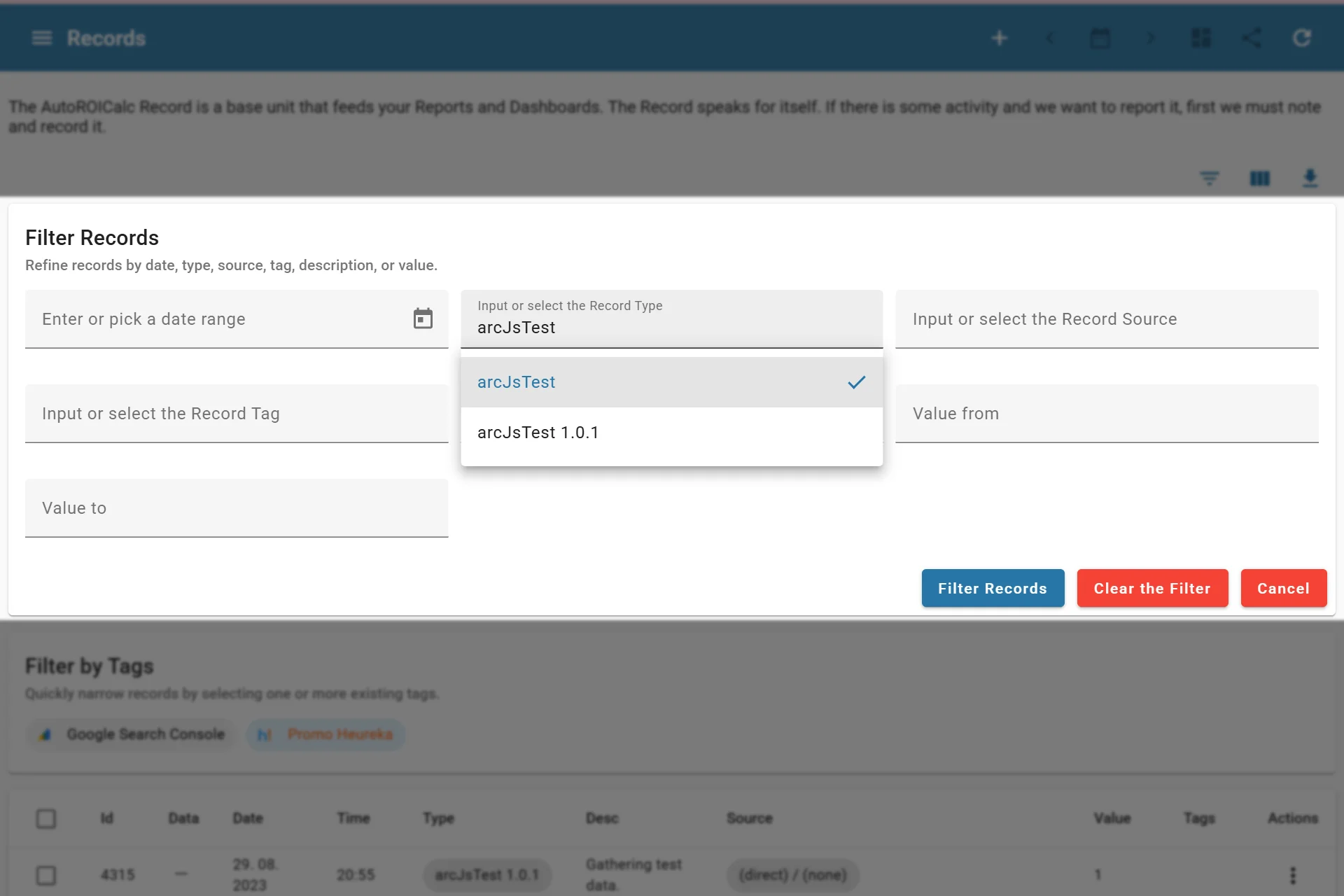
Filtering records
Filter by Tags
Filtering by record tags quickly narrows the record list. Select one or more tags to show only matching records.
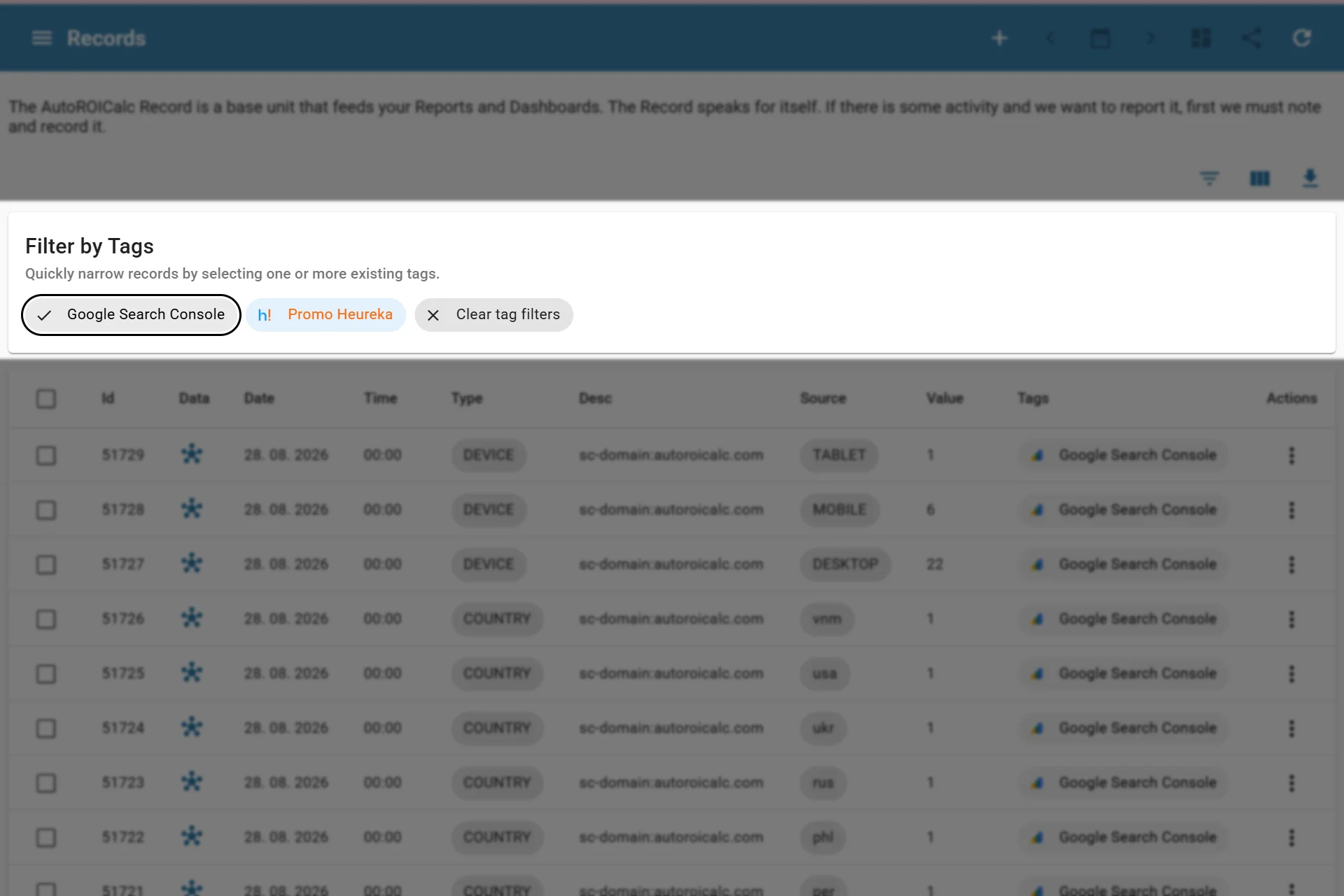
Using the tags filter
Show/Hide Record Columns
For a more focused view, you can show or hide table columns and keep only the relevant data visible. Click the "Show/Hide Columns" icon to adjust the table.
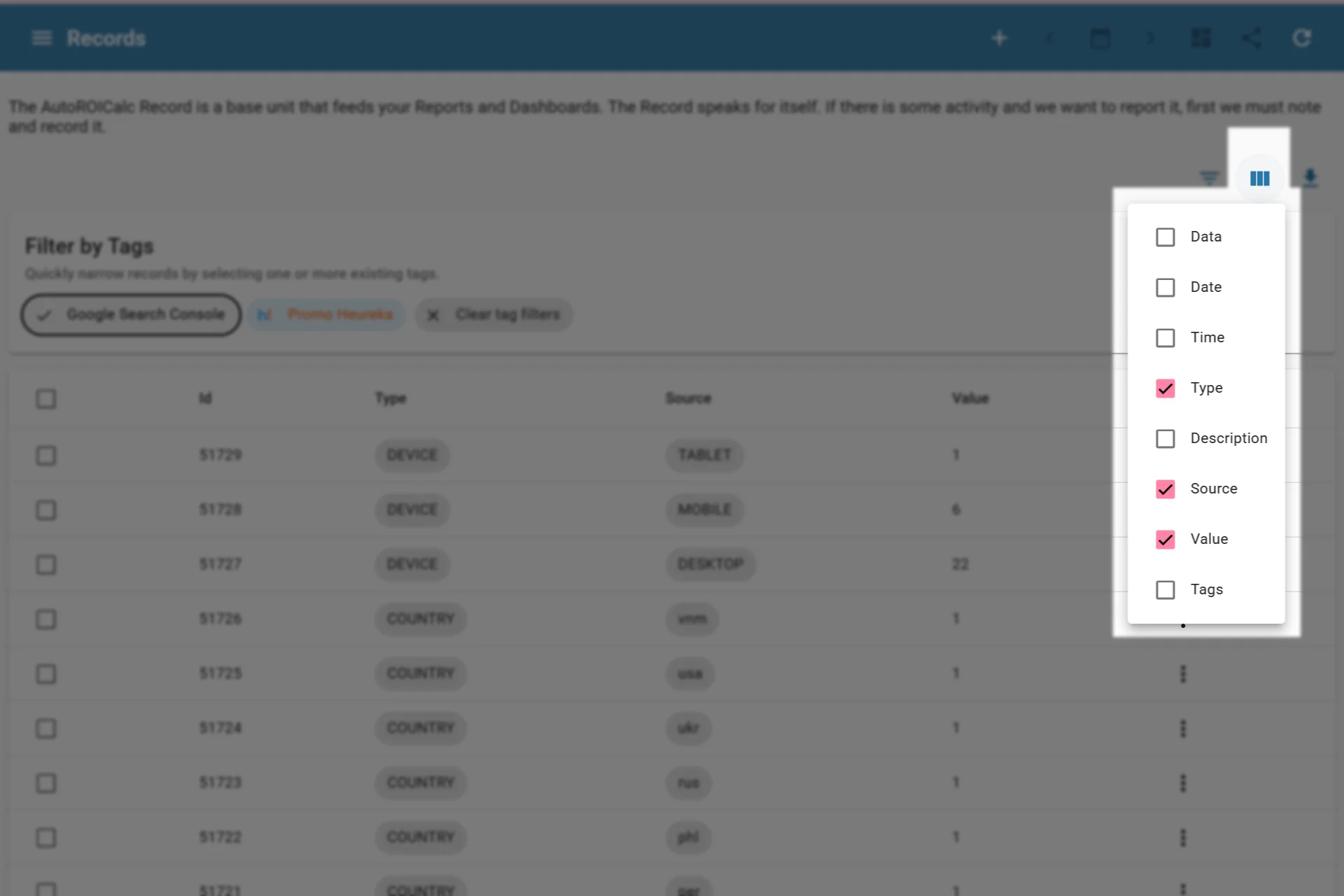
Show or hide record listing columns
Export to ARC, CSV, or XML
You can export the selected records, or all records, into the portable ARC (AutoROICalc) format, CSV, or XML. This is useful when you need to work with records in an external program. Click the "Export / Download" button to export records.
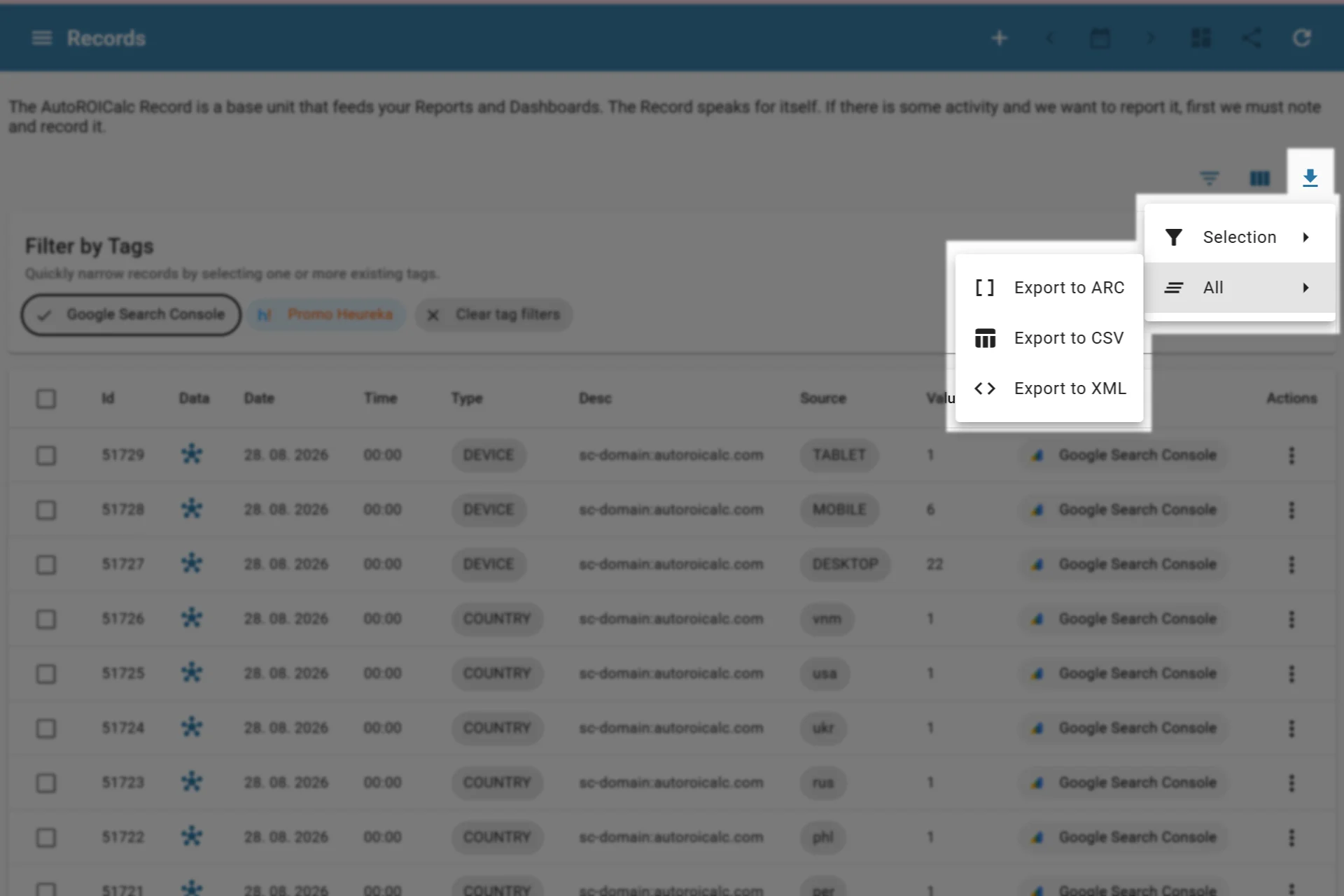
Exporting records
Record Actions
You can use record actions for each record:
- Edit
- Clone
- Delete
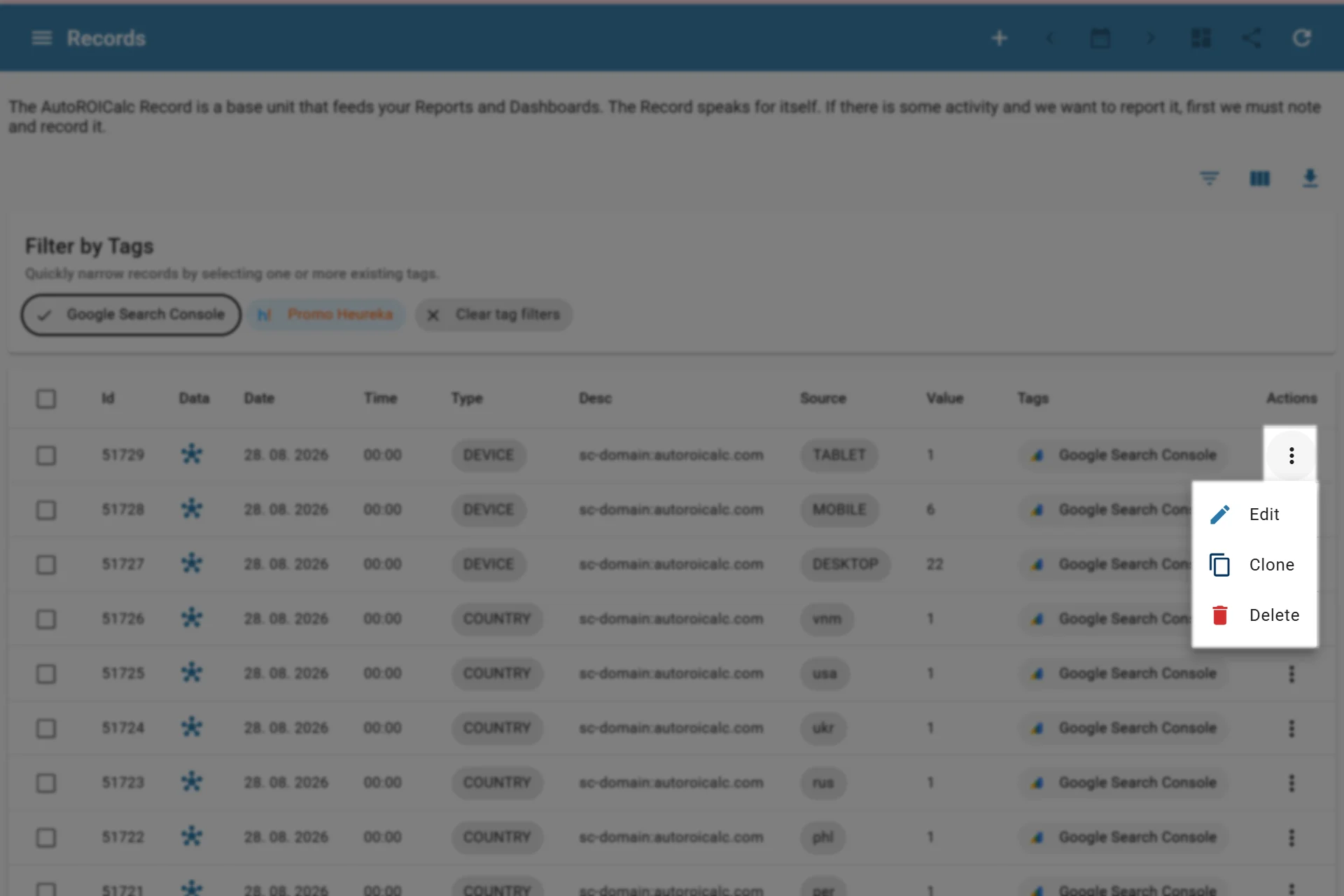
Record actions
Add a Record
To add a record manually, fill in the required fields and confirm with the action button, such as "Add the Record".
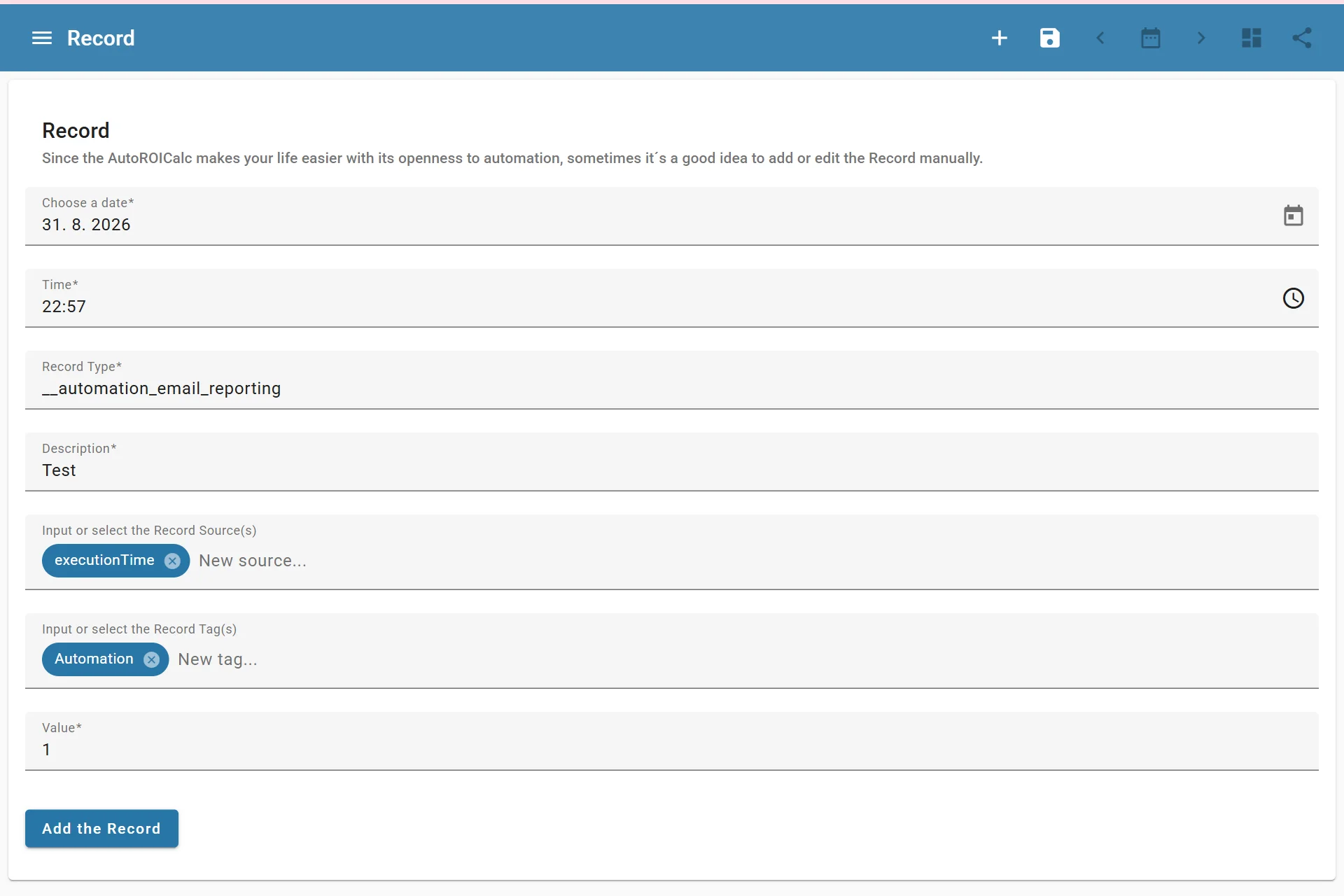
Adding a record
Edit a Record
Edit a record when the stored data is incomplete, incorrect, or needs to be aligned with your reporting structure.
Common edits include:
- Changing the date or time
- Updating the record type
- Correcting the description
- Adjusting sources or tags
- Correcting the value
- Adding or updating custom data
Reports update from records
When you edit records, reports and dashboards that use those records can change. Review related reports after larger edits.
To edit a record, use Actions -> Edit:
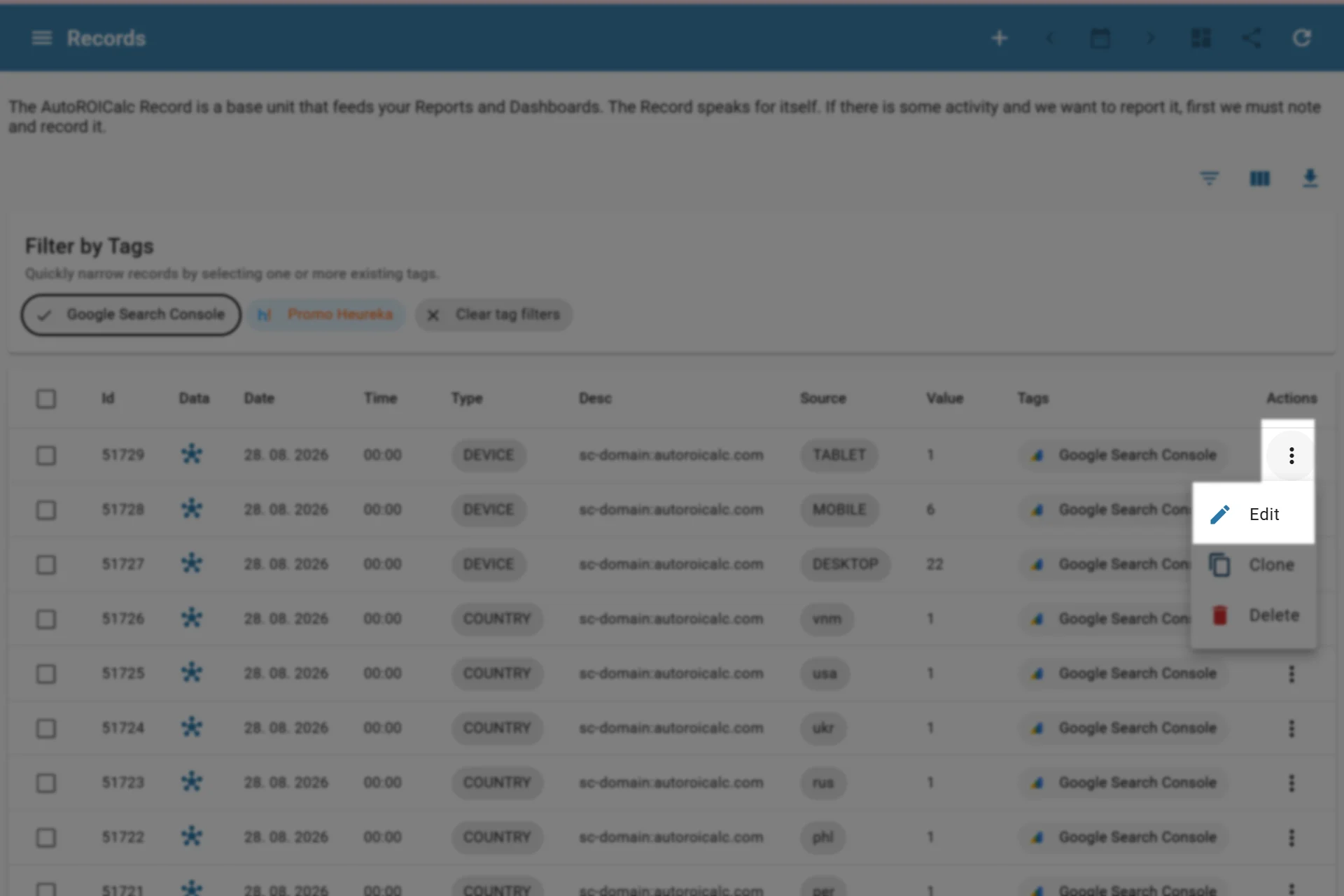
Action to edit a record
Clone a Record
Clone a record when you want to reuse existing record data, adjust it, and save it as a new record.
To clone a record, use Actions -> Clone:
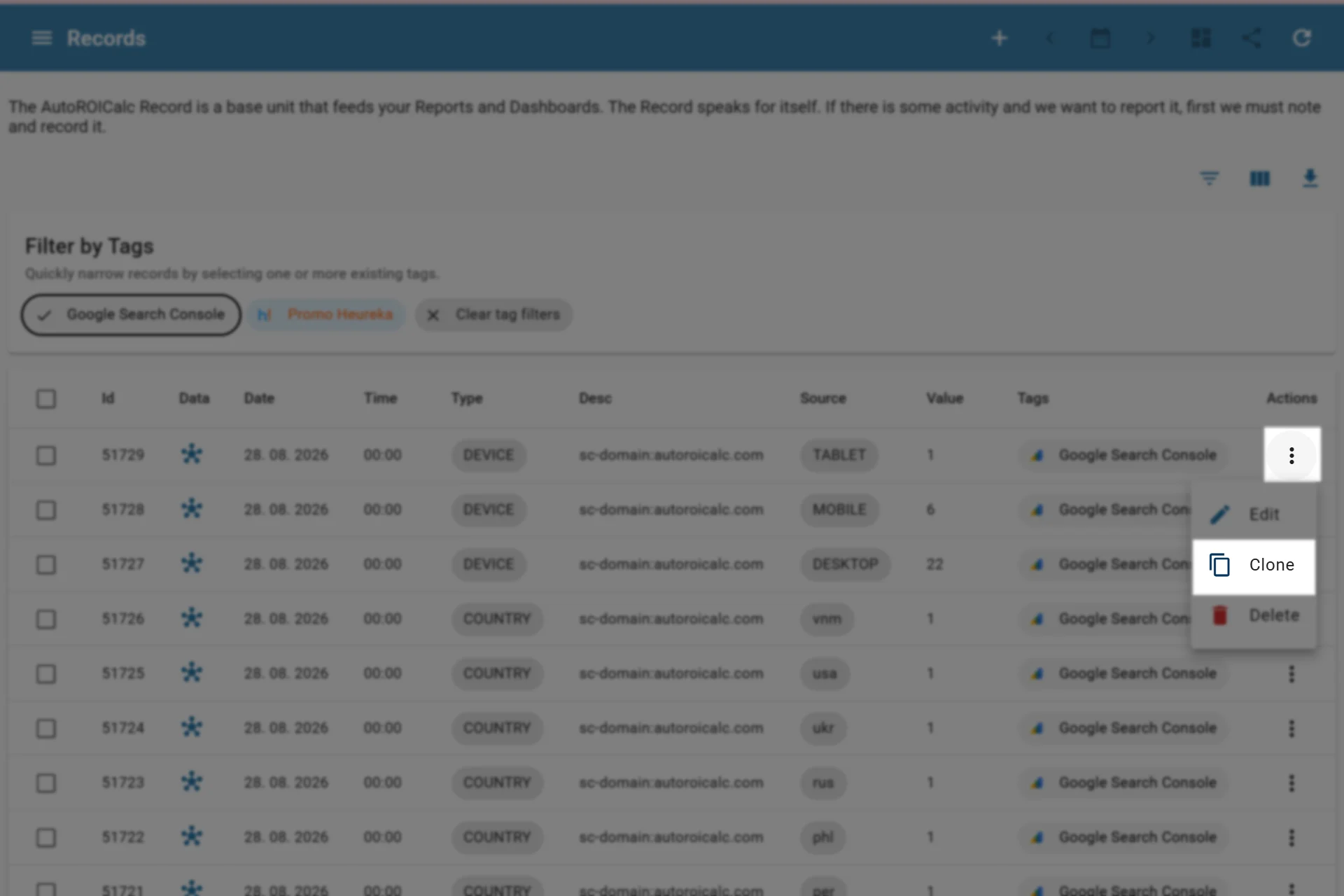
Action to clone a record
Delete a Record
Delete records that were added by mistake, imported incorrectly, or should no longer be included in report calculations.
Deletion changes report results
Deleted records are removed from future report calculations. Check the record date, type, source, and report filters before deleting.
To delete a record, use Actions -> Delete:
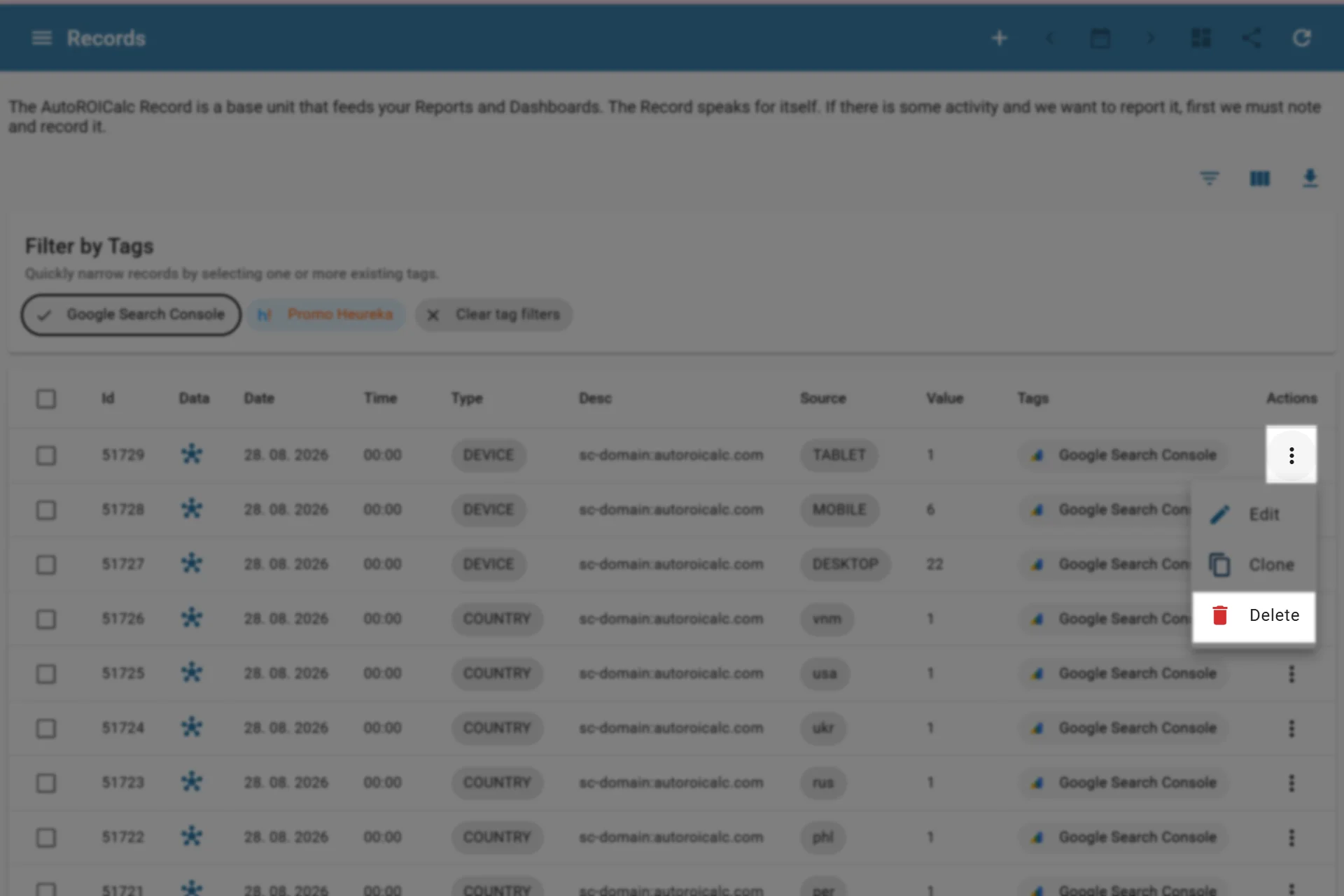
Action to delete a record
Bulk Actions
Bulk actions help when several records need the same correction or removal. Use bulk actions carefully, especially when records are already used in active reports.
Bulk actions include:
- Bulk delete
- Bulk update
To execute a bulk action, select the target records and choose the appropriate action.
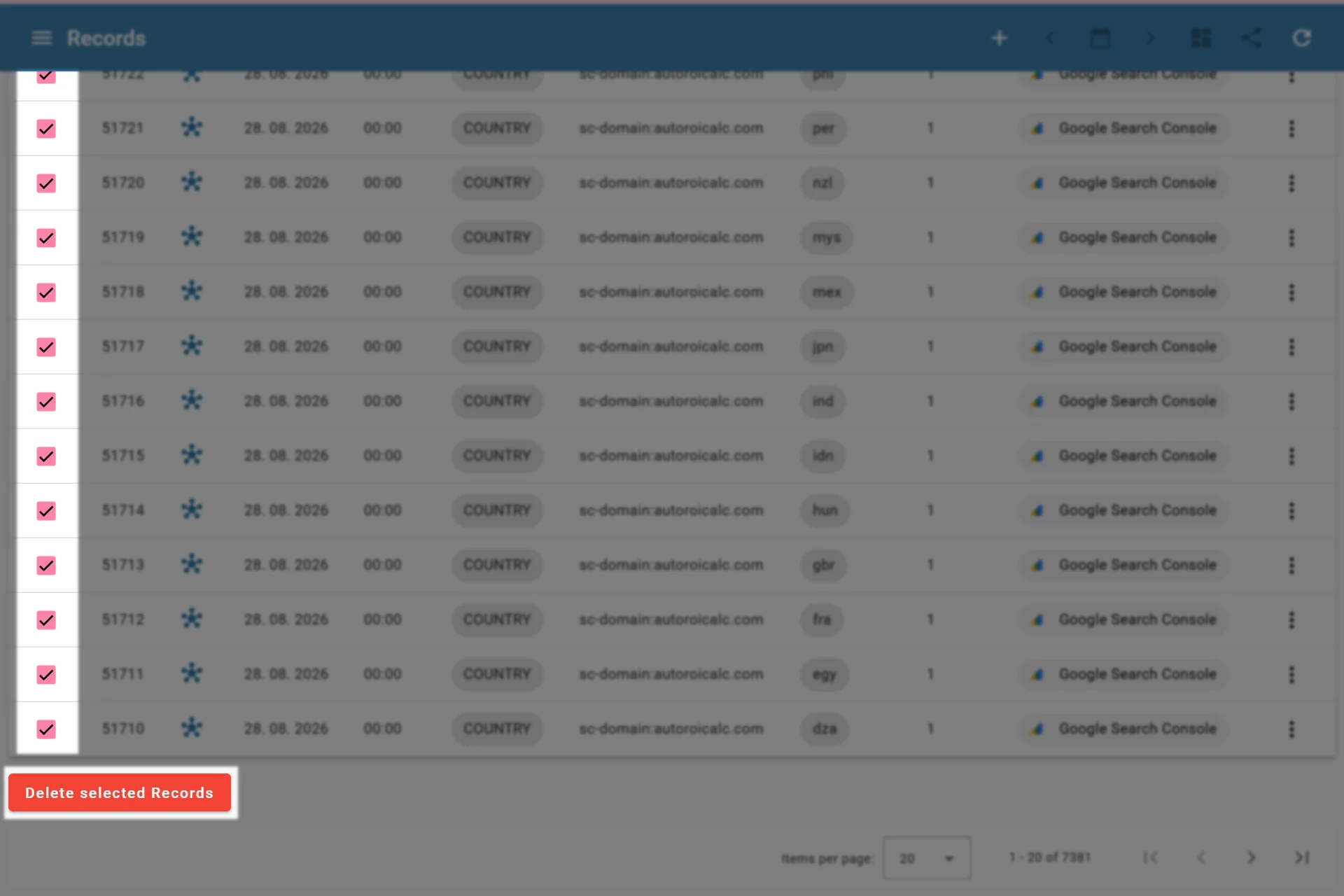
Bulk deleting selected records
Tips for Consistent Manual Records
- Keep record types short and consistent
- Use sources in the same format across records
- Use tags for campaigns, channels, clients, or internal grouping
- Avoid duplicate records for the same activity
- Use file import or API access when manual entry becomes repetitive