Importing Records
Use file imports when you already have records prepared in another tool, spreadsheet, export, or AutoROICalc backup file.
AutoROICalc supports importing records from CSV, XML, and ARC files.
Preview before importing
Use the import preview to confirm record dates, types, sources, tags, values, and custom data before saving the records.
Shared property permissions
File imports require the owner or admin role. Imports through connected integrations require the owner. Imported records belong to the selected property and are shared with its members. See property roles.
When to Import Records
File imports are useful when:
- You are moving existing records into AutoROICalc
- You want to test reports with sample data
- You receive data from another system as a file
- You need to add multiple records at once
- You are restoring or moving records between environments
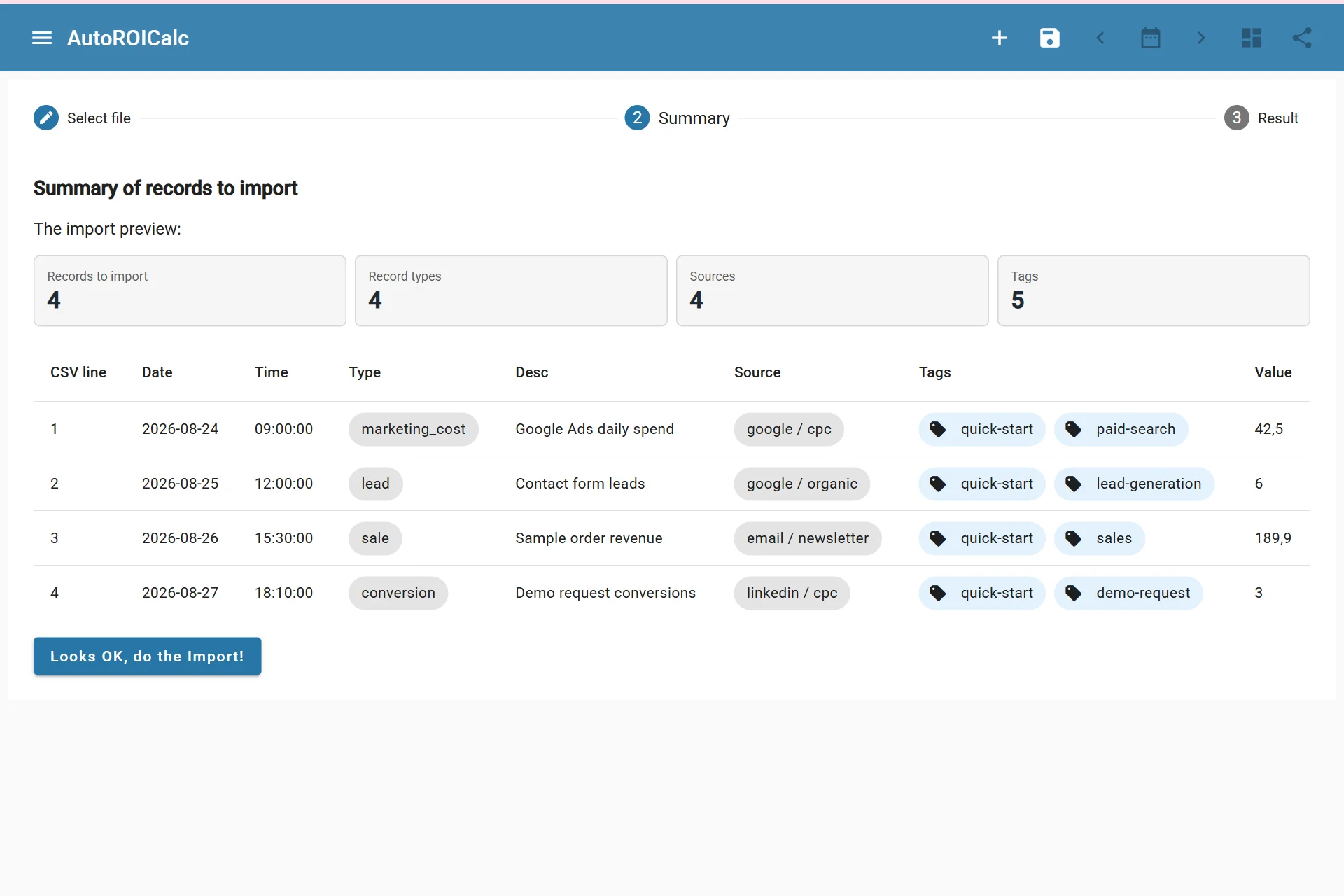
Summary of records to import
Supported Import Formats
| Format | Best for | Notes |
|---|---|---|
| CSV | Spreadsheets and simple exports | Easy to edit manually |
| XML | Structured data exports | Useful when source data is already XML |
| ARC | AutoROICalc record exports | Best for moving records between AutoROICalc environments |
Need some sample records?
We've prepared CSV, XML, and ARC files with dummy records you can use while getting started with the app.
Required Record Data
Imported records should include:
- Date
- Time
- Type
- Description
- Source
- Value
Tags and custom data are optional, but they are recommended when you want easier grouping, filtering, and reporting context.
CSV Imports
CSV is the easiest format to prepare manually or export from a spreadsheet.
Typical CSV columns:
date,time,type,desc,source,tags,value
2026-08-24,09:00:00,marketing_cost,Google Ads daily spend,google / cpc,quick-start|paid-search,42.50
For multiple sources or tags, separate values with |.
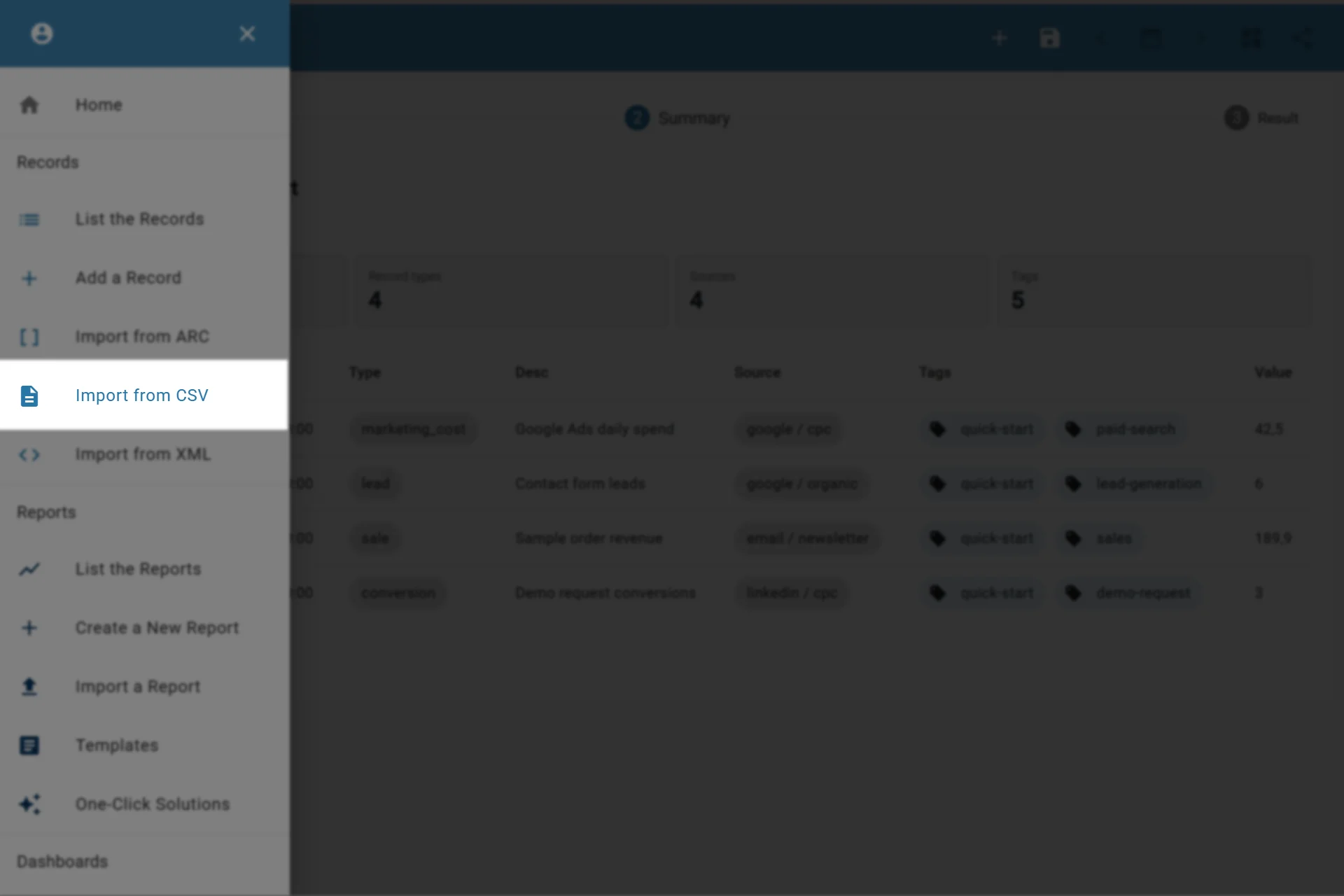
Importing records from CSV
Download Sample CSV Import Records from CSV
XML Imports
XML imports are useful when records come from systems that export structured XML data.
Each record is represented by a <record> element inside the root <records> element.
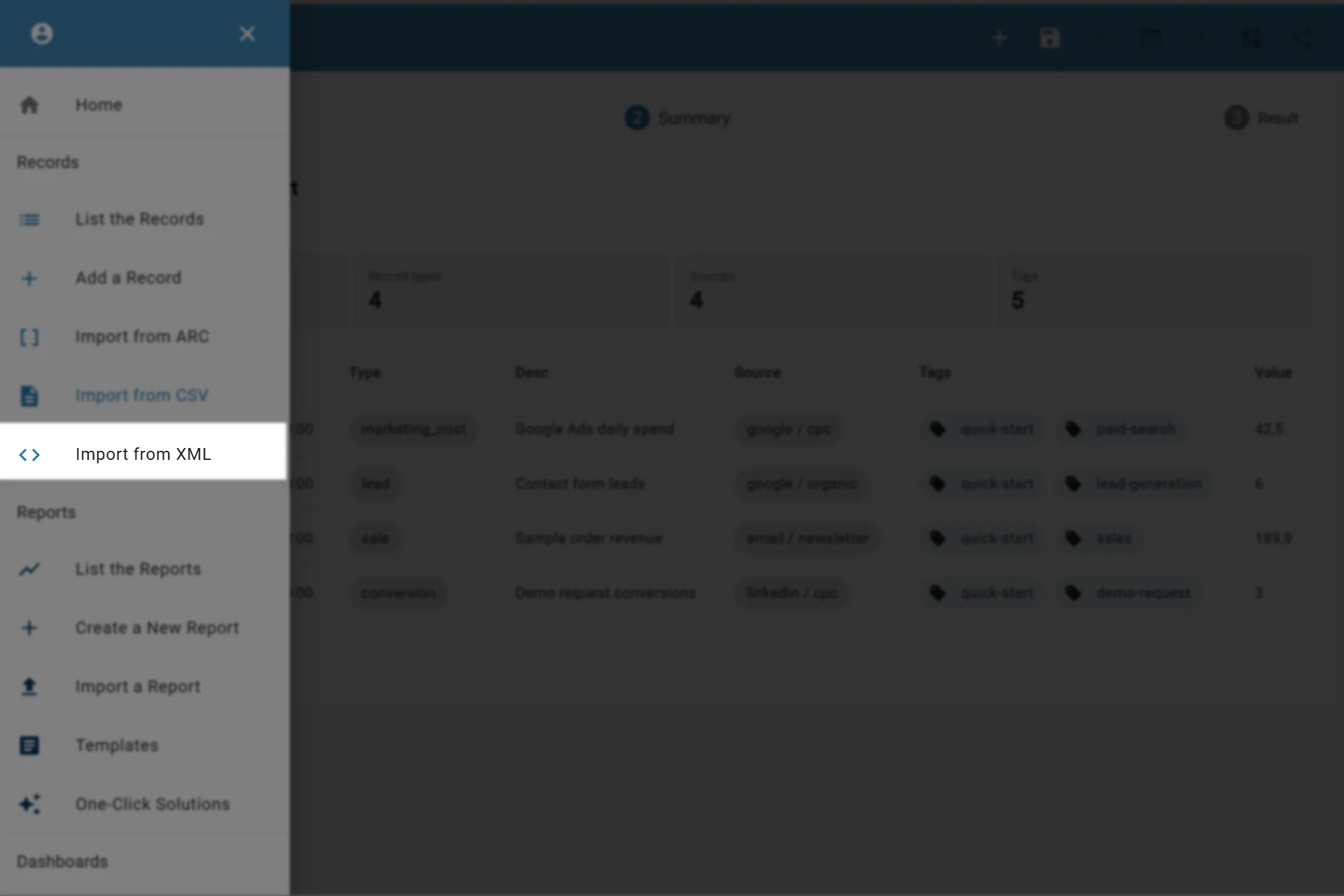
Importing records from XML
Download Sample XML Import Records from XML
ARC Imports
ARC is the native AutoROICalc export format. Use ARC when moving records between AutoROICalc environments or when you want to preserve the exported record structure.
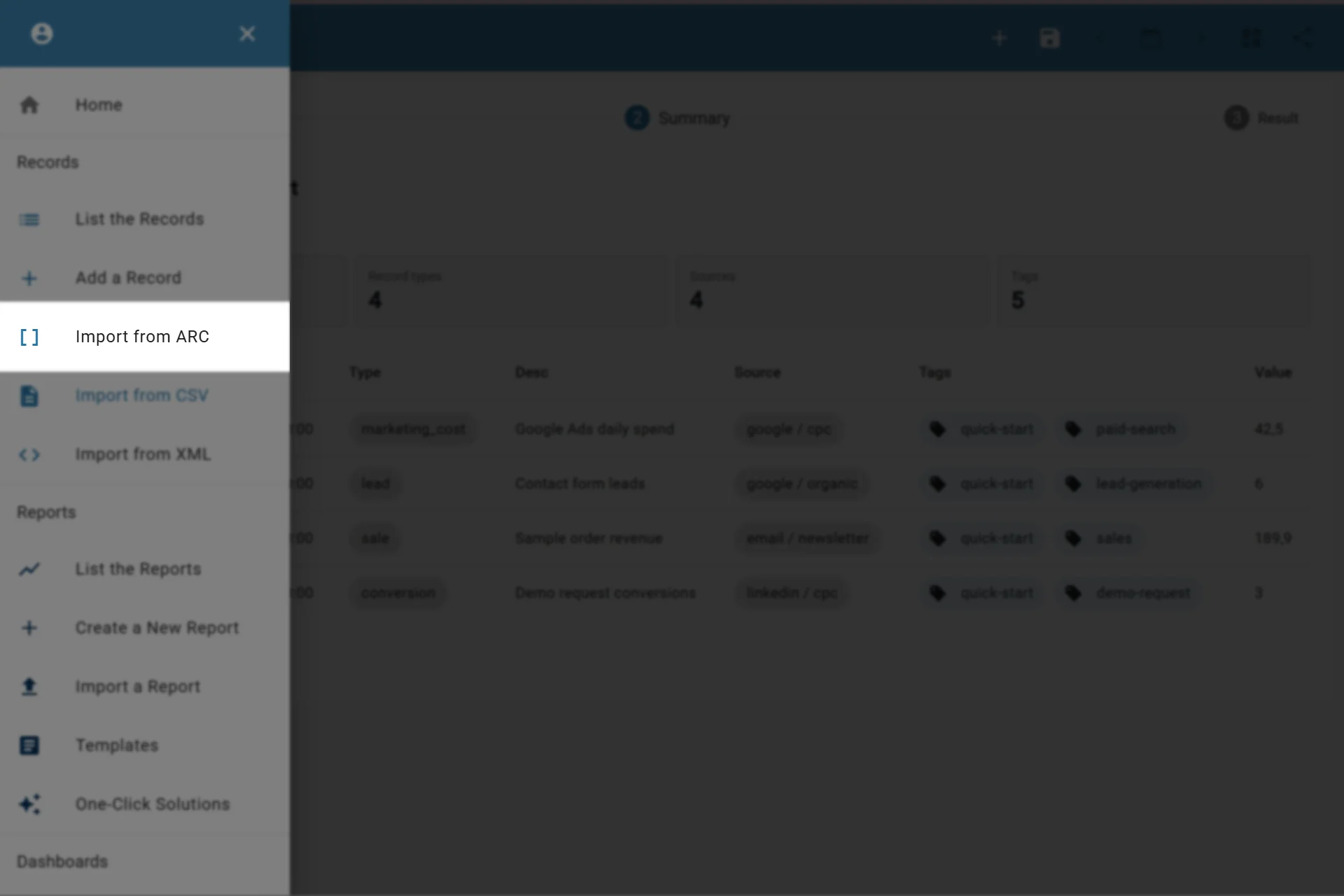
Importing records from ARC
Download Sample ARC Import Records from ARC
Duplicate Handling
AutoROICalc checks records during import to help avoid adding the same data twice. If duplicate records are detected, review the import results before continuing.
After Importing
After importing records:
- Review the import result summary.
- Check several records in the records list.
- Confirm record types, sources, tags, and custom data look consistent.
- Build or refresh a report that uses the imported data.
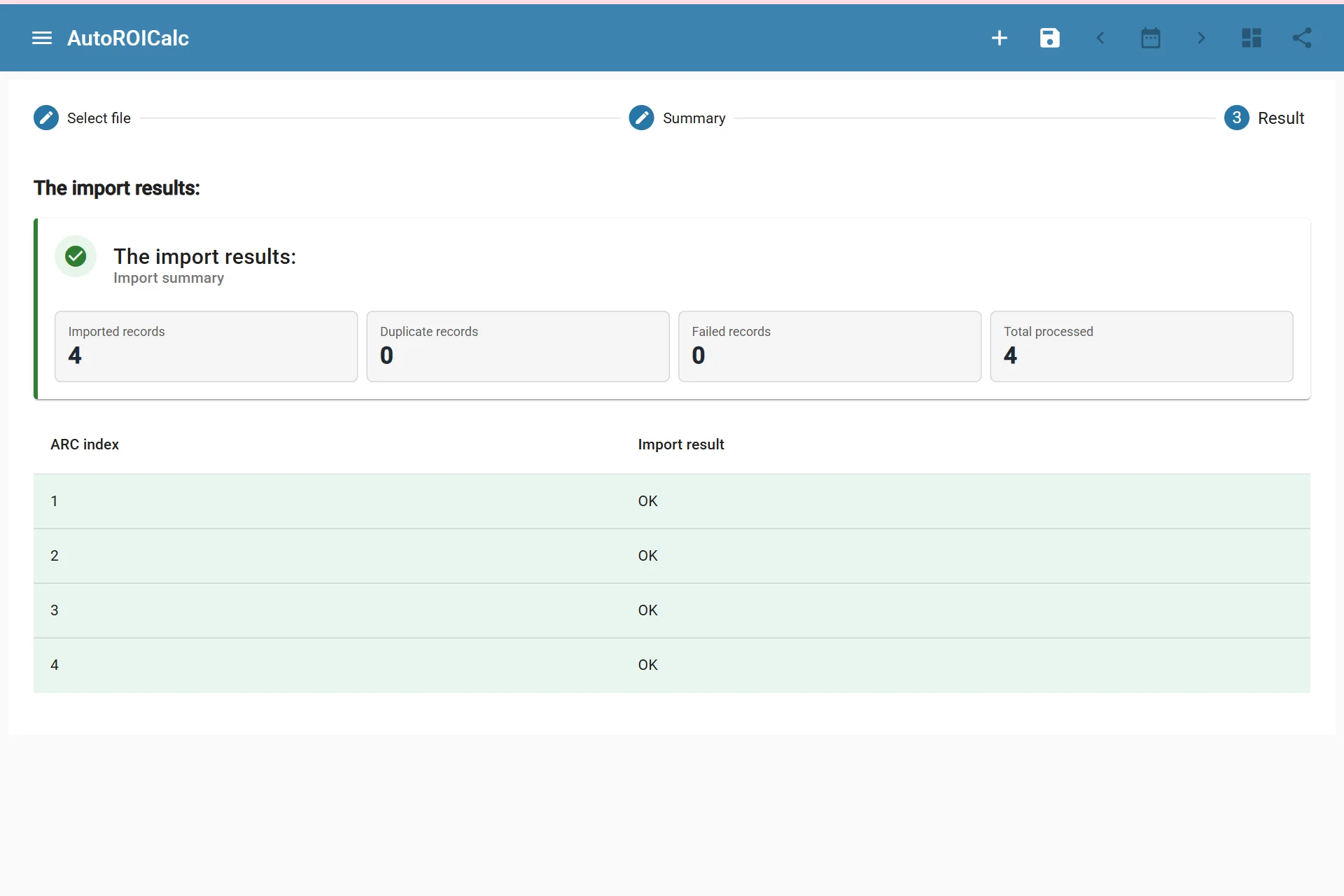
Import results