Your team already has places where work happens: a company website, an internal dashboard, or a client portal. With AutoROICalc report widgets, you can bring reporting into those spaces and make performance data part of the everyday workflow.
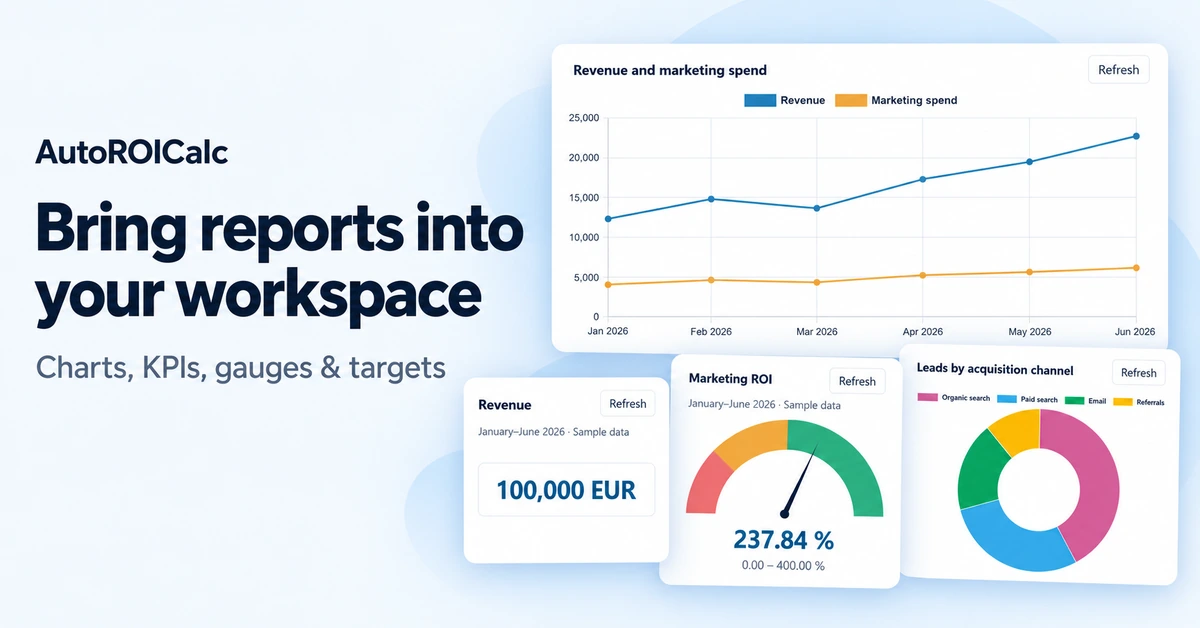
Show a revenue chart beside your sales updates, place a lead-generation KPI on your team homepage, or add automated SEO reports to a client portal. Wherever your platform supports HTML iframe embeds, you can display a report widget without rebuilding its calculations in another tool.
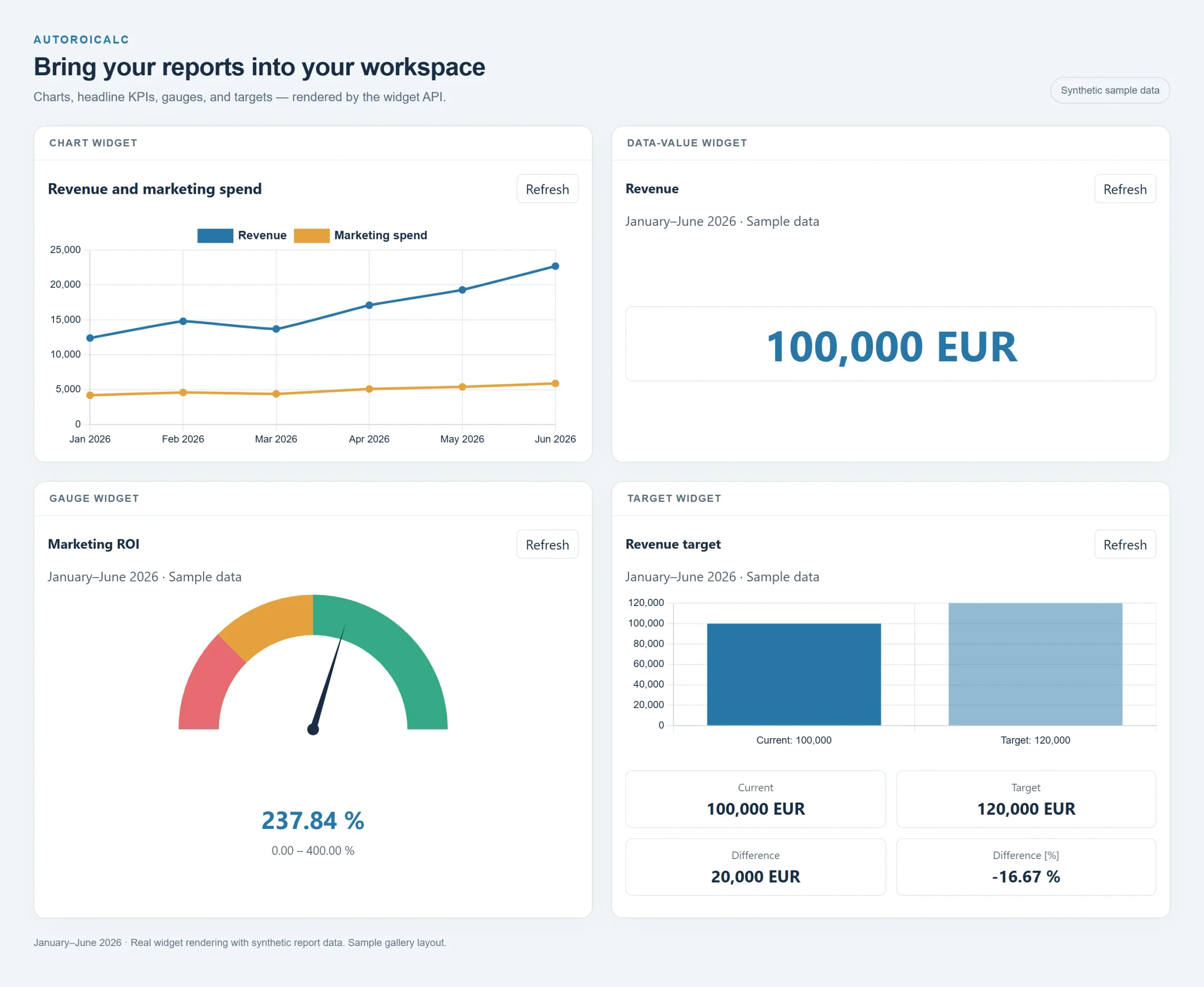
Make automated client reporting easier to access
A report becomes more useful when people can find it where they already work. Embedded widgets help teams and clients check results alongside project updates, campaign plans, and business goals.
- Reduce manual sharing. Give people a place to check results without repeatedly exporting charts or sending screenshots.
- Reuse your reporting setup. Keep the data sources and calculations in AutoROICalc while displaying the results elsewhere.
- Choose the right view. Show a trend chart for a review meeting, a headline KPI for a quick check, or progress against a target.
- Support client conversations. Place relevant metrics beside the work, explanations, and next steps they help inform.
Which report widgets can you embed?
Charts: show trends and comparisons
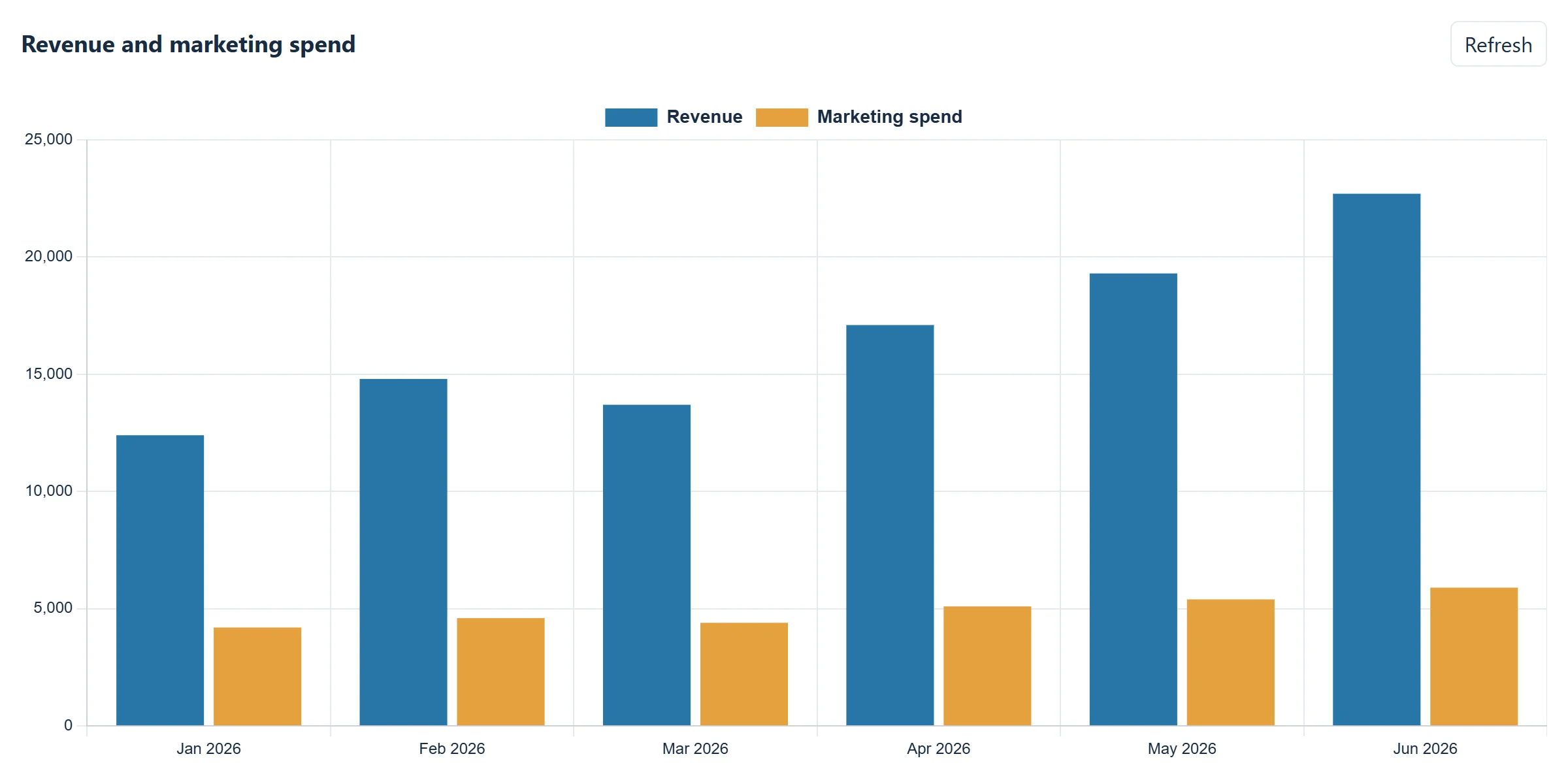
Use line, bar, pie, or doughnut charts to present your report data. For example, an automated SEO dashboard could show organic clicks over time, while a sales dashboard could compare revenue across reporting periods. Each generated chart can have its own dataset selection and display order.
Data values: highlight one important KPI
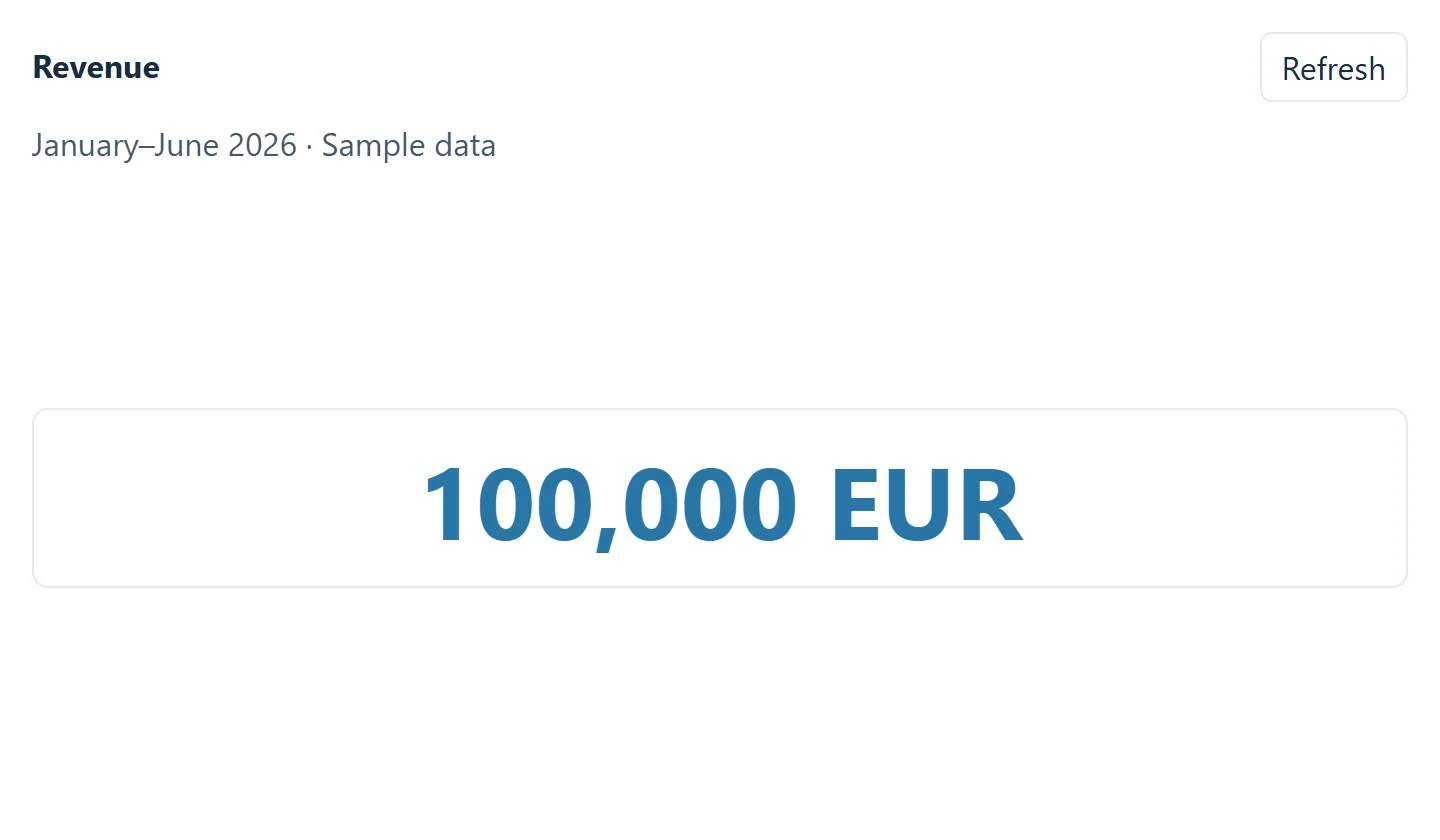
A data-value widget presents a calculated metric as a prominent number. Use it for a headline result such as revenue, leads, or a custom performance metric configured in your report.
Gauges: give a metric visual context
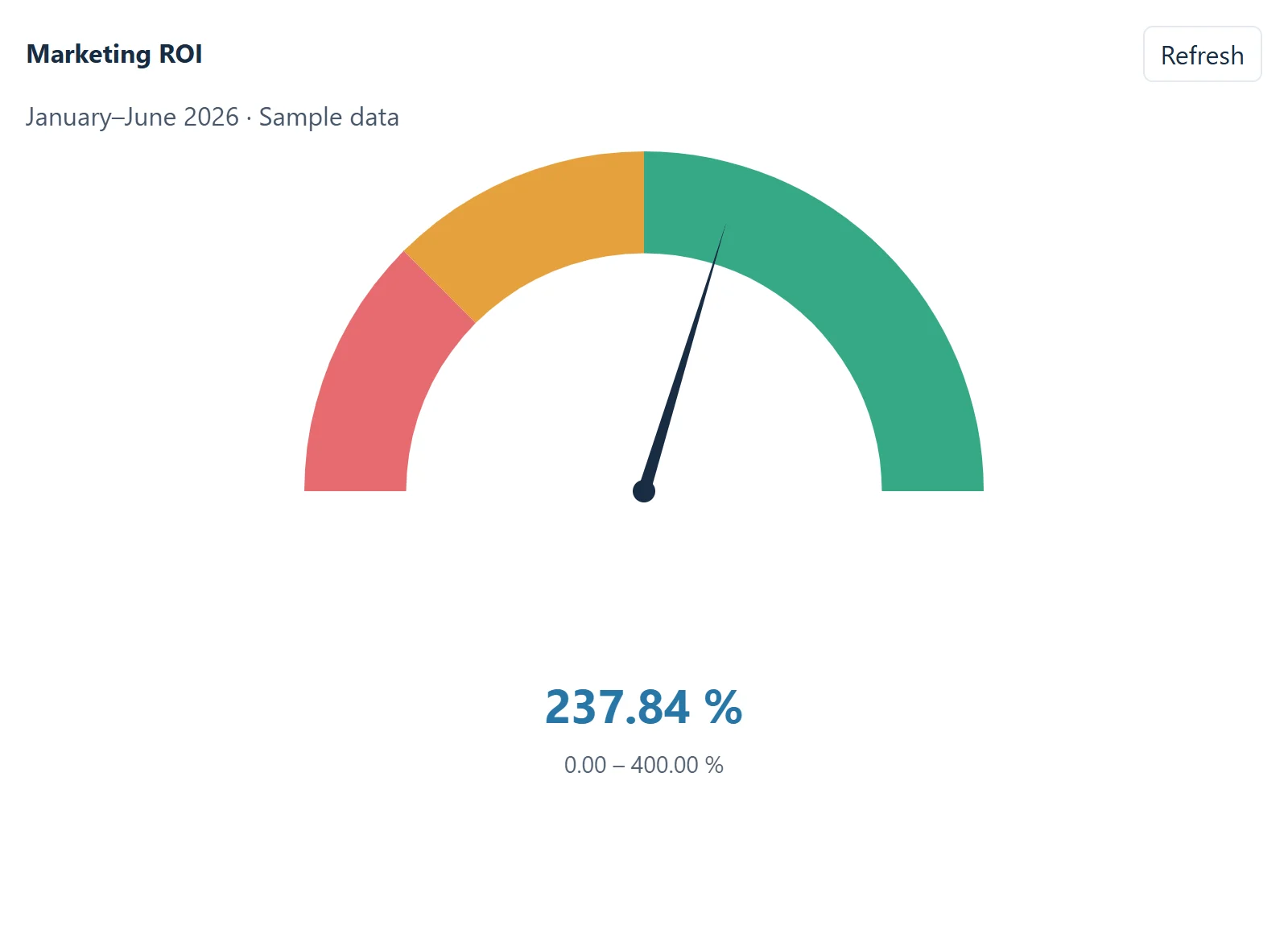
A gauge places a metric within a configured range, with colored bands and a needle showing its position. It helps readers quickly see where the current value sits relative to the thresholds you have defined.
Targets: compare results with a goal
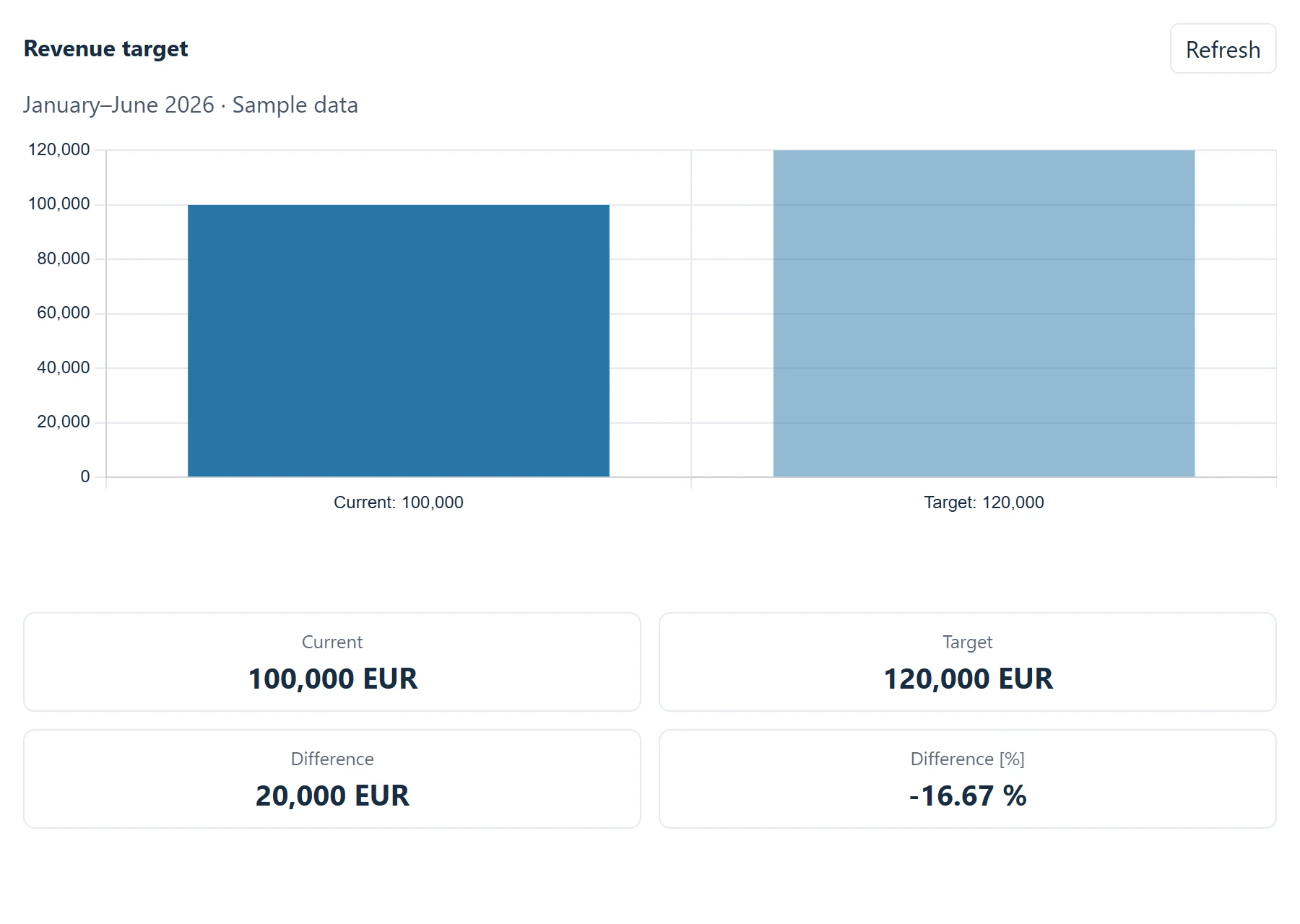
A target widget compares a calculated value with a configured goal. It displays the current result, target, absolute difference, and percentage difference. Use it to follow revenue goals, lead targets, or another measurable objective.
How to embed a report chart
The simplest starting point is a chart generated from a saved report.
- Open the saved report in AutoROICalc.
- Open the report sharing menu and select API Widget.
- Choose Public iframe access and select Save.
- Complete the chart configuration, choosing the chart type, datasets, and their order.
- Copy the generated iframe code and paste it into an HTML embed area on your destination page.
A chart embed looks like this. Use the actual snippet generated for your report:
<iframe
  src="https://api.autoroicalc.com/embed/v1/reports/PUBLIC_ID/widgets/chart"
  title="Performance report"
  loading="lazy"
  style="width:100%;height:420px;border:0">
</iframe>
Adjust the width and height to fit your page. In WordPress, add the generated snippet to a Custom HTML block using an account permitted to embed iframes.
Public access applies to the report’s widget data. Anyone who obtains the public URL can access it, even if you place the embed inside a private portal. Only enable public access for reports whose data is safe to share publicly. Selecting fewer datasets changes the chart’s presentation; it is not an access restriction.
Using saved KPI, gauge, and target widgets
Data-value, gauge, and target embeds use widgets already configured in the report layout. These are available through the API, using the saved widget’s ID:
https://api.autoroicalc.com/embed/v1/reports/PUBLIC_ID/widgets/render?widgetId=WIDGET_IDReplace the placeholders with the report’s public ID and the configured widget’s ID, then use that URL as the iframe’s src. The widget uses its saved settings, including its selected metric and any configured range or target. The chart generator described above generates chart snippets; these saved widgets use the separate render endpoint.
For private integrations, a trusted backend can request widget HTML or JSON through the service-token API. Keep service tokens on the server and control viewer access through your application.
Frequently asked questions
How do I share automated SEO reports with my team?
Embed a relevant chart in a team page that supports iframes. For example, show organic clicks or impressions from a report using your connected Search Console data. For confidential reporting, use an authenticated backend integration rather than a public widget URL.
Do embedded widgets update automatically?
Each widget load retrieves calculated report data, subject to a short cache. The built-in Refresh button requests a fresh calculation. An already-open widget does not continuously poll for changes. Results also depend on the data currently available in AutoROICalc, so widget refresh is separate from importing new source data.
Can I create several widgets from one report?
Yes. Generate multiple chart snippets with different chart types, dataset selections, and display orders. Those choices belong to each generated URL and do not change the other chart embeds. You can also embed supported widgets saved in the report layout.
Does this embed the entire report?
Each endpoint renders an individual supported widget. The available types are charts, data values, gauges, and targets. You can arrange multiple embeds on a destination page to build a view around the metrics your audience needs.
Do viewers need an AutoROICalc account?
Public widget viewers do not need to sign in. For authenticated integrations, your backend retrieves the widget with a service token, and your application determines who can view the result.
Can I stop sharing a public widget?
Yes. Change widget access to Authenticated backend access or Disabled to revoke public access. You can also rotate the public URL, which invalidates the previous URL immediately. After rotation, replace every embed that used the old URL.
What if my website does not display the iframe?
Check whether your platform allows external iframes and whether your editing permissions allow that HTML. Some platforms remove iframe tags when saving. Also confirm that public widget access is enabled and that you are using the current URL.
Start with one metric your team checks regularly and bring it into the place where you discuss the results. For more ideas, explore client reporting automation or learn how to get started with automated SEO reports.