
Since the AutoROICalc Google Analytics Integration has been updated, we no longer list the Google Analytics Accounts of the User. Now we only require the Google Analytics 4 Property ID.
Where is it?
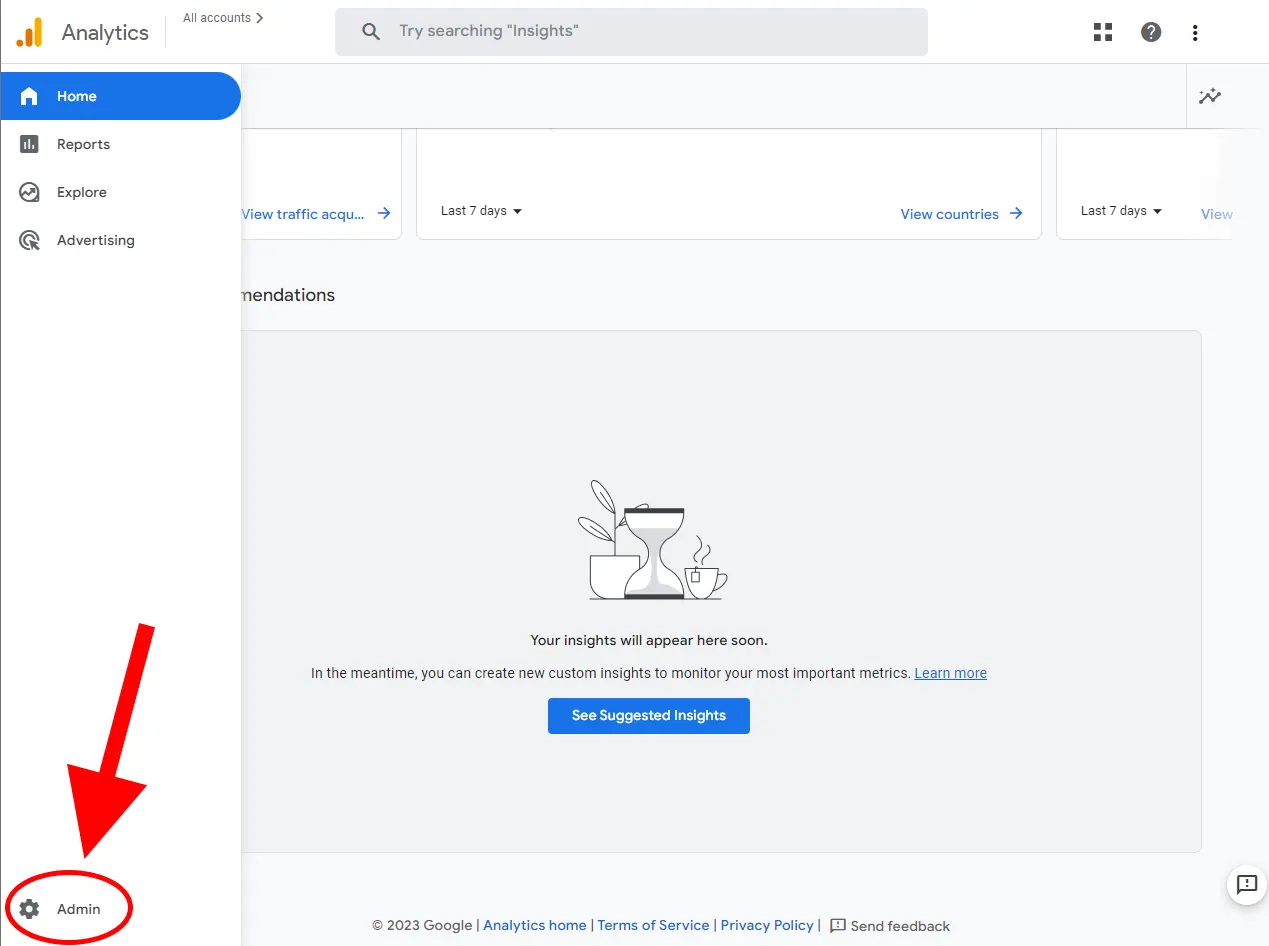
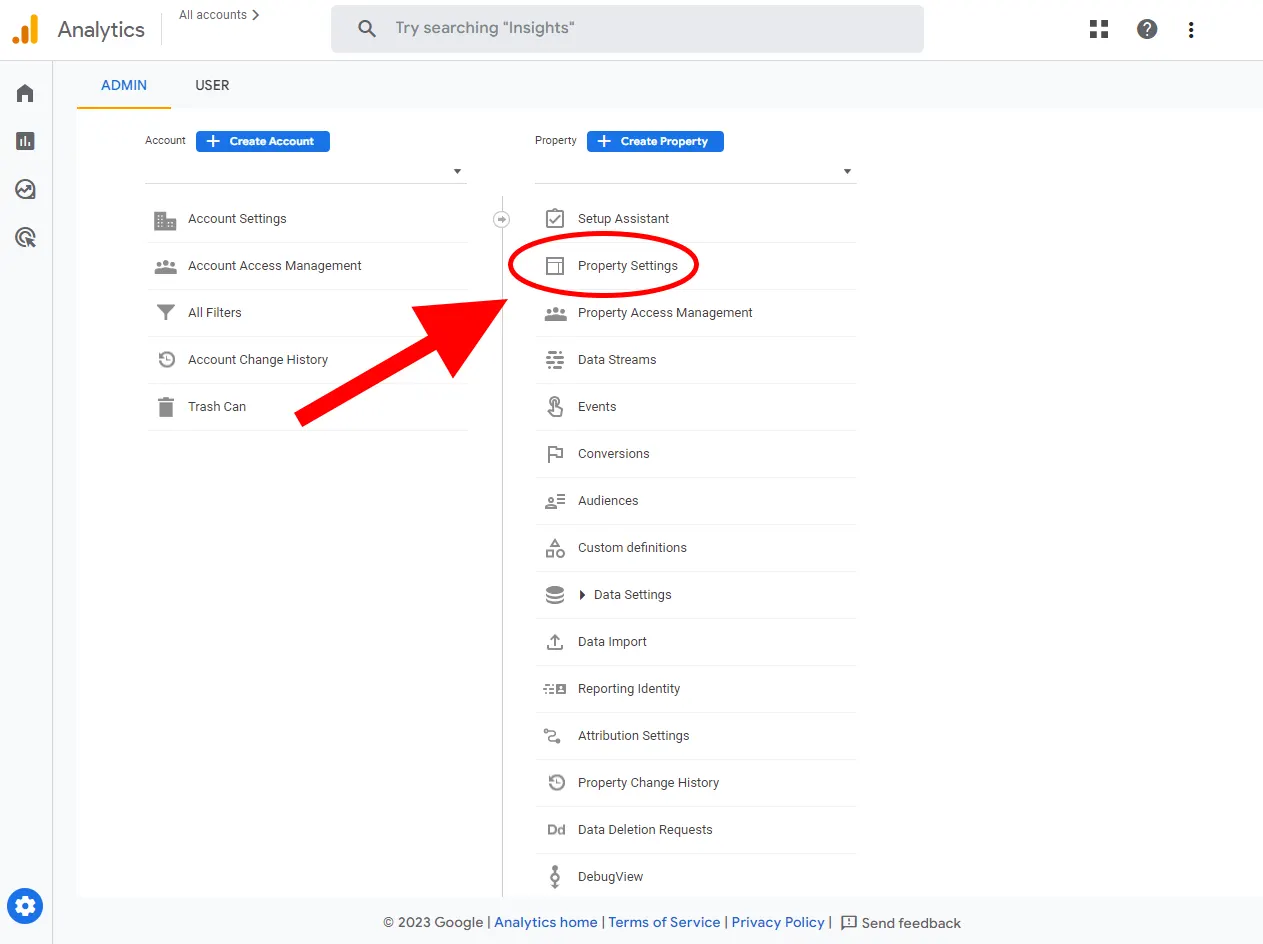
- Open the https://analytics.google.com/ page and pick the desired analytics account.
- On the left bottom, click on the “Admin” icon.
- In the “Property” column, click on “Property Settings”.
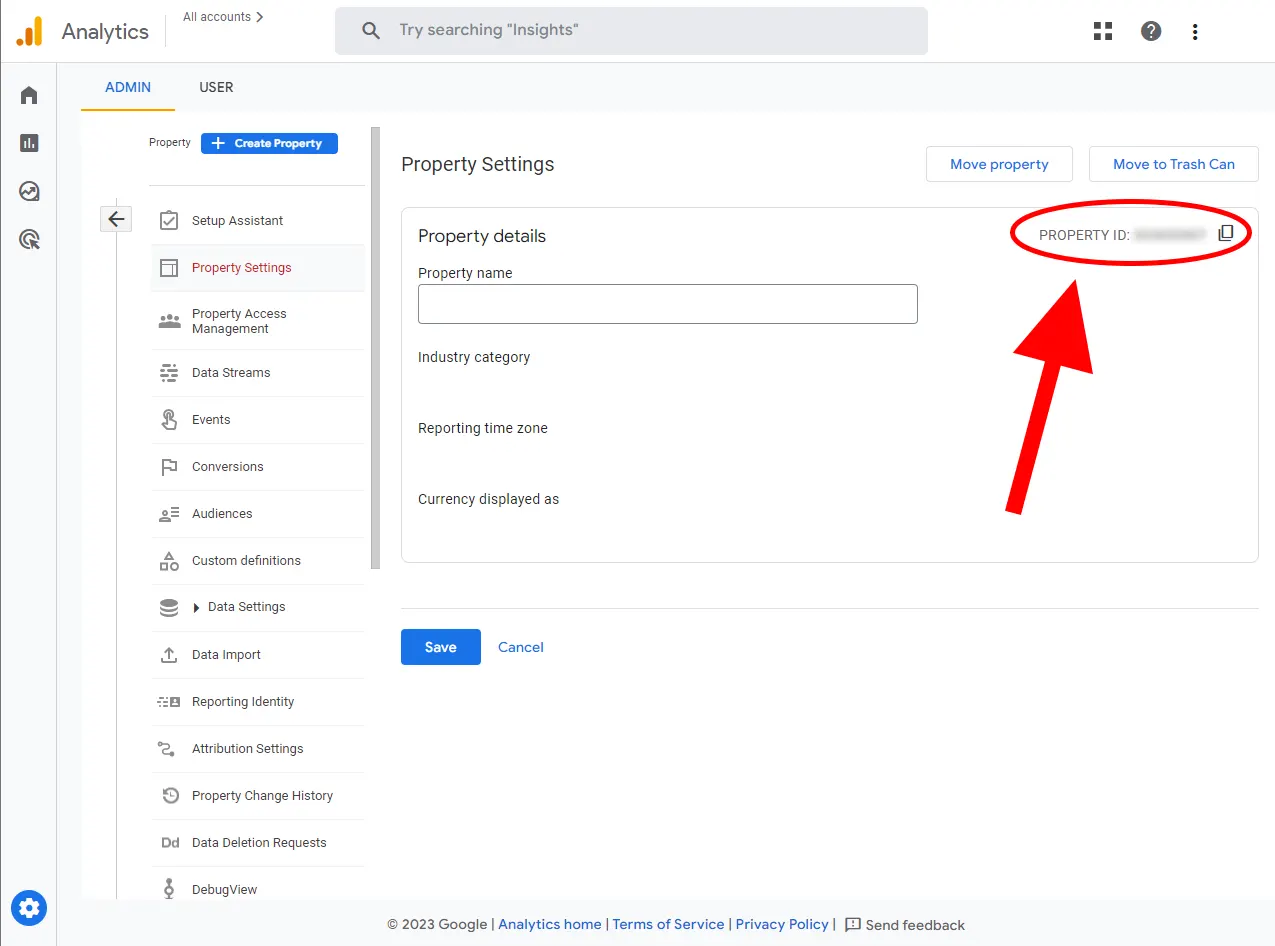
- Look for the “PROPERTY ID” entry – this is your GA4 Property ID.
Let´s see:
Flexible analytics & reporting without BI complexity
Unify your data, build custom metrics, and automate dashboards and reports — all in one platform.
Unified and Consistent Data Layer
Aggregate and structure data from multiple platforms into one reliable, analytics-ready environment.
Flexible Data Management
Manage your data manually or automatically with powerful tools for synchronization, updates, and transformations.
Accessible Anytime, Anywhere
Your dashboards, reports, and data remain accessible across devices — always under your control.
Custom Analytics & Automated Reporting
Define your own KPIs, build custom dashboards, and automate reporting workflows across your organization.
Set Once, Enjoy Forever!
Start your free 30-day trial and explore all features.
Explore the pricing plans. No credit card is required.